---
updatedAt: 2026-04-09T11:17:01.000Z
agentTools:
projectIndex: https://docs.kondukto.io/llms.txt
---
# Google SSO with SAML 2.0
1. Login to your “**Google Admin Portal**”.
2. Select “**Apps ➡️ Web and mobile apps**” from the left menu.
3. Click the “**Add app ➡️ Add custom SAML app**” button on the web and mobile apps page.
4. Fill in the application name as “**kondukto-saml**” and click the “**Continue**” button.
5. Copy the **“SSO URL”** and **“Entity ID”** fields to the safe place and download the **“Certificate”** to the safe place and click the “**Continue**” button.
6. Fill in the **“ACS URL”** and **“Entity ID”** fields and click the “**Continue**” button.
7. Add “**Primary email**” basic information as **“email”** attribute statement and **“groups”** group attribute statement.
8. Select groups and add **“groups”** group attribute statement. Click the **“Finish”** button.
9. On the **“kondukto-saml”** application page, click the **“User Access”** panel.
10. Configure **User Access**:
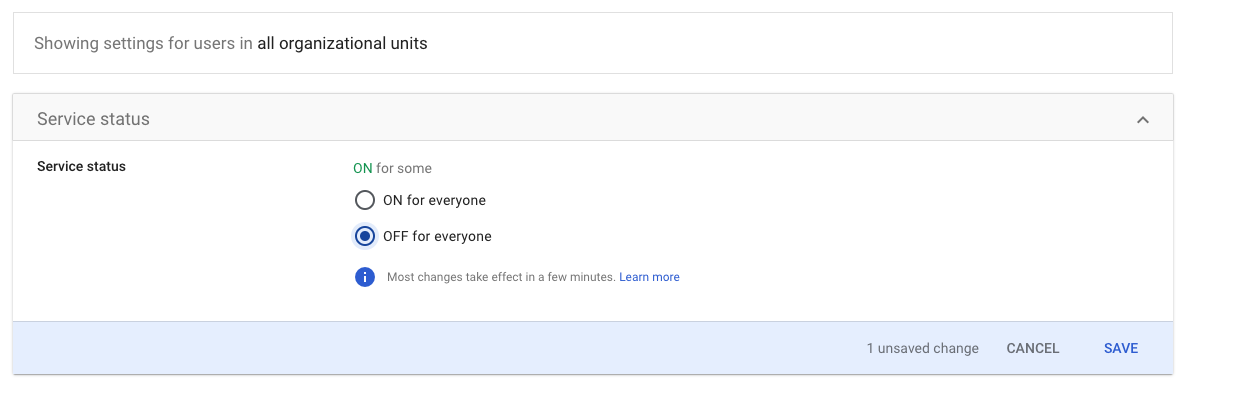
11. If you want all users in your organization to have access to the application, select “**ON for everyone**” selection as “**Service status**” and click the “**Save**” button.
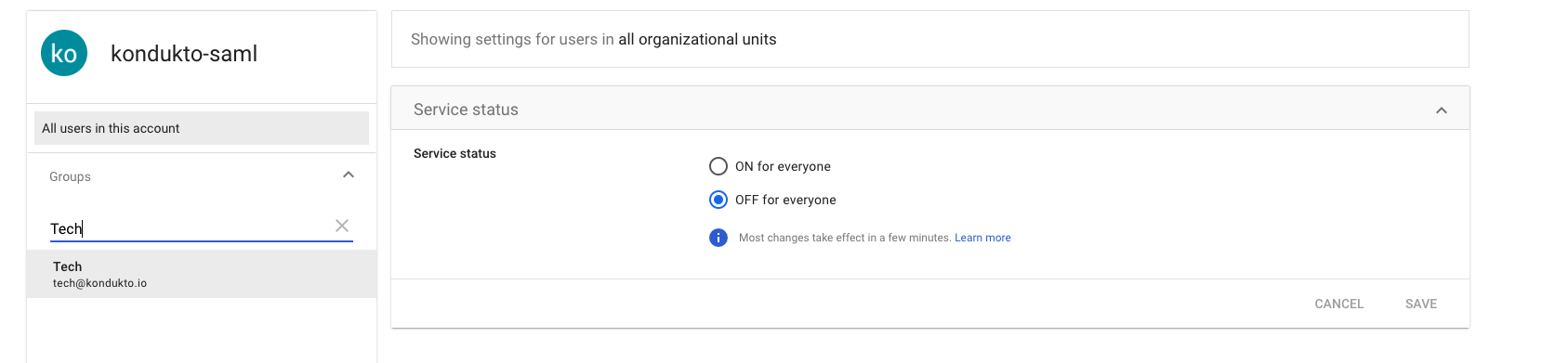
12. If you want users from specific groups within your organization to access the application, select "**OFF for everyone**" for **all organizational units**. And then select allowed groups.


13. Login to your **Kondukto** application with an admin user.
14. Select **“Integrations”** from the left menu.
15. Select **“Single Sing-On Tools”** on the integrations page.
16. Activate the “**SAML”** integration.
17. Fill in the SAML integration fields and click the **“Save”** button.
1. **Base URL:** https\://**\{YOUR\_KONDUKTO\_HOST}**/core/saml/acs
2. **Sign In URL:** The copied **“SSO URL”** value in step 5.
3. **Entity ID:** The copied **“Entity ID”** value in step 5.
4. **Entity:** kondukto
5. **Certificate:** The downloaded **“Certificate”** value in step 5.
6. **Admin:** The Google group name whose members are going to have an **admin** role in Kondukto
7. **Manager:** The Google group name whose members are going to have a **manager** role in Kondukto
8. **Product Owner:** The Google group name whose members are going to have a **product owner** role in Kondukto
9. **Team Lead:** The Google group name whose members are going to have a **team lead** role in Kondukto
10. **Developer:** The Google group name whose members are going to have a **developer** role in Kondukto
11. **Pentester:** The Google group name whose members are going to have a **pentester** role in Kondukto
12. **Team Provisioning:** If checked, Google groups will be created as a team in Kondukt
16. Click the “**Login with SAML**” button on the Kondukto application login page to log in with a user of the Google “**kondukto-saml**” app.
17. Log in to the Google user credentials to log in to the Kondukto application.