

Amazon Inspector CSPM Integration
To integrate Amazon Inspector CSPM , the following steps should be followed. The integration supports two authentication methods:
Use Instance Host Profile
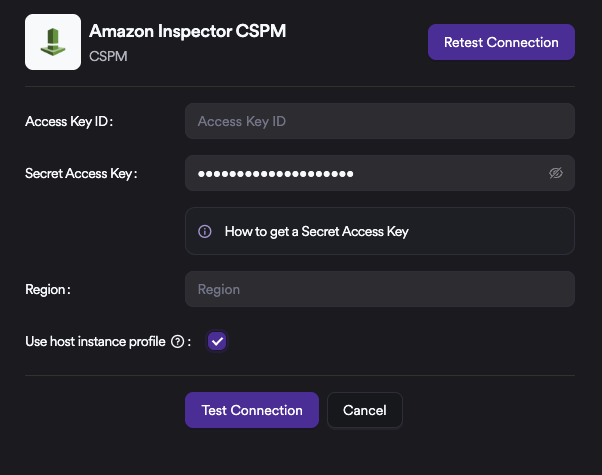
When Use Instance Host Profile is enabled, the integration authenticates using the IAM role attached to the EC2 instance where the Invicti ASPM host is running.
In this mode, Access Key ID and Secret Access Key are not required. Temporary credentials are automatically retrieved from the EC2 Instance Metadata Service (IMDS) and used for all AWS API calls.
Prerequisites:
- Invicti ASPM host must run on an EC2 instance
- An IAM role with the required permissions must be attached to the instance
This approach follows AWS best practices and removes the need to manage static credentials.
Integration Steps
- To complete the integration, navigate within Invicti ASPM to
Integrations ➡️ Scanners ➡️ CSPM, and enable Amazon Inspector CSPM by selecting the Active option. - Then, select Use Instance’s Host Profile and click Test Connection.
Once the Connection Successful message is displayed, click Save to complete the setup.
Access Key–Based Authentication
Prerequisites:
- IAM User with necessary permissions.
Integration Steps
As a first step, a user must be created in AWS and the required permissions must be defined.
- Log in to AWS and navigate to the IAM service. In some organizations, the menu structure may differ. The IAM service can be accessed directly by searching for “IAM” in the top search bar. If the IAM menu is not visible, access permissions may be restricted and the organization administrator should be contacted.
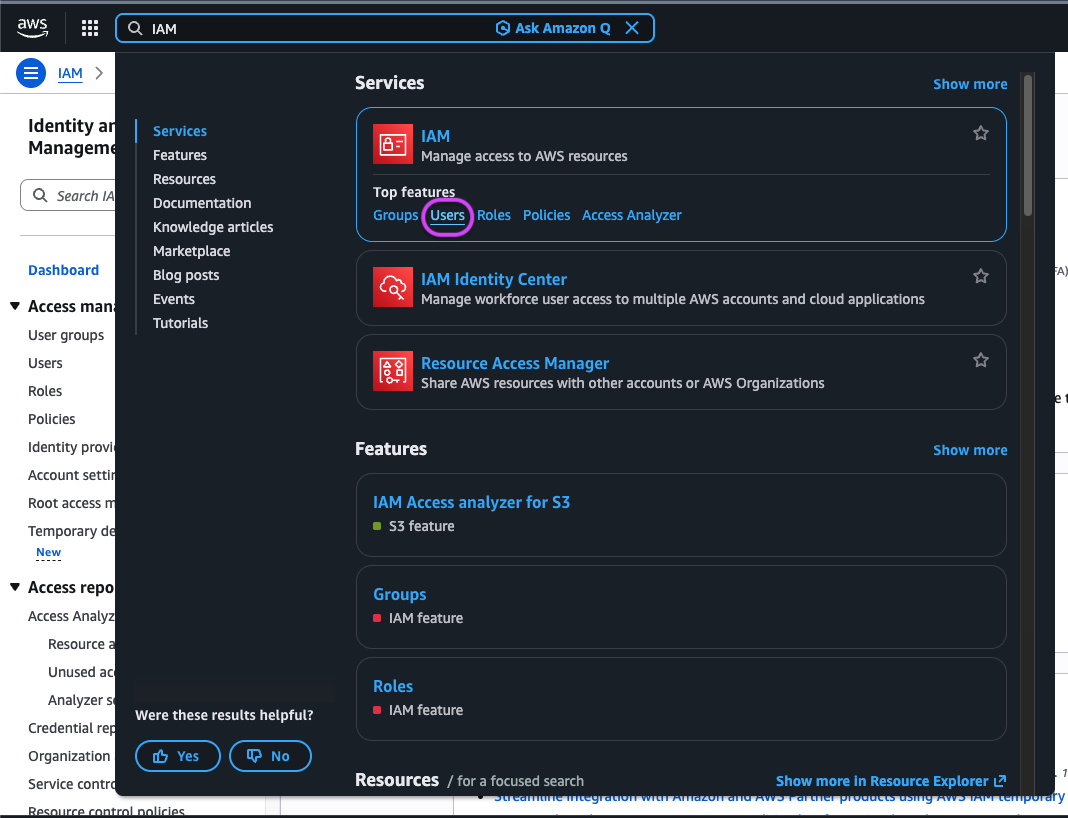
- Under the IAM service, navigate to the Users page. A list of all users within the organization will be displayed. An existing user may be used, or a new service account may be created.
- If an existing user is selected, it must be ensured that the user has permission to view Amazon Inspector findings. Under normal circumstances, and unless restricted by organization-specific role-based access controls, the following permissions are sufficient for Amazon Inspector integration. Additional permissions may be required depending on organizational policies.
{
  "Effect": "Allow",
  "Action": [
    "inspector2:ListFindings",
    "inspector2:GetFindings",
    "inspector2:BatchGetAccountStatus"
  ],
  "Resource": "*"
}- Navigate to the user’s page and open the Security Credentials tab.
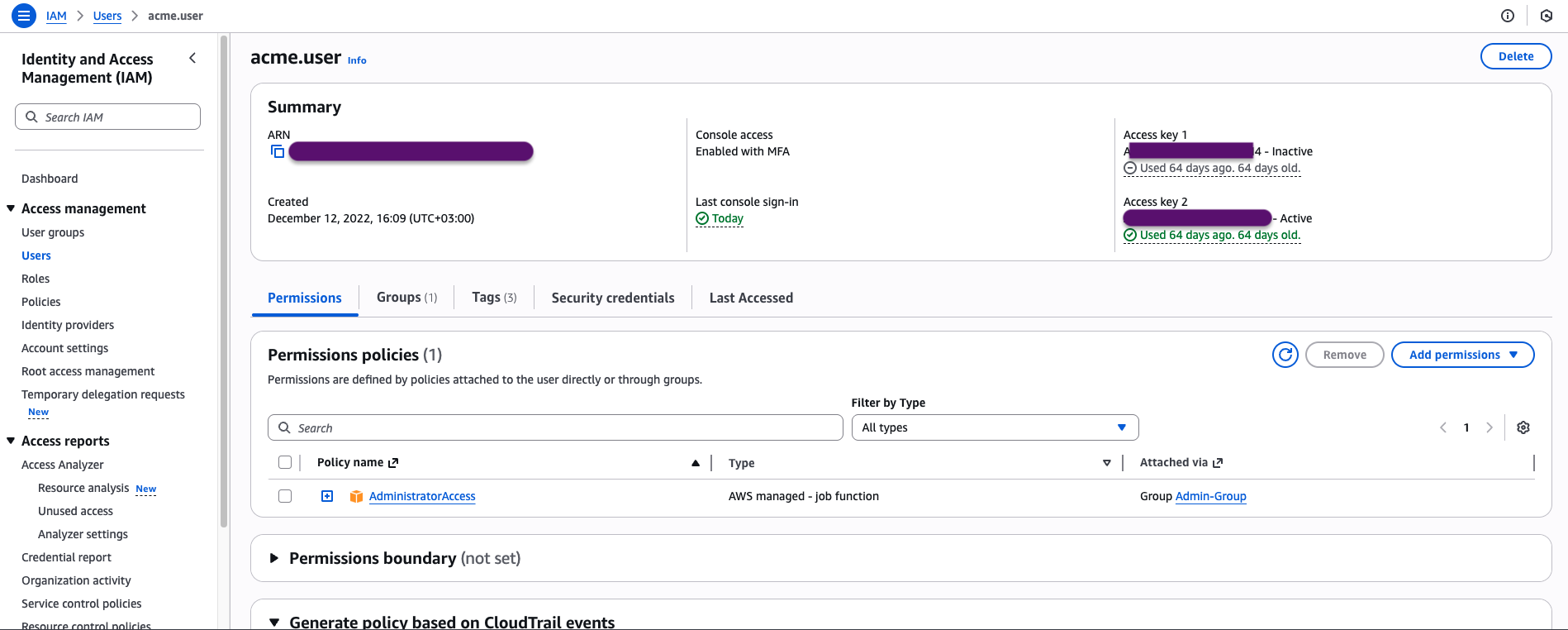
- Select Create Access Key. On the following screen, the Application Running Outside AWS option can be selected; this provides access based on the organization’s configuration.
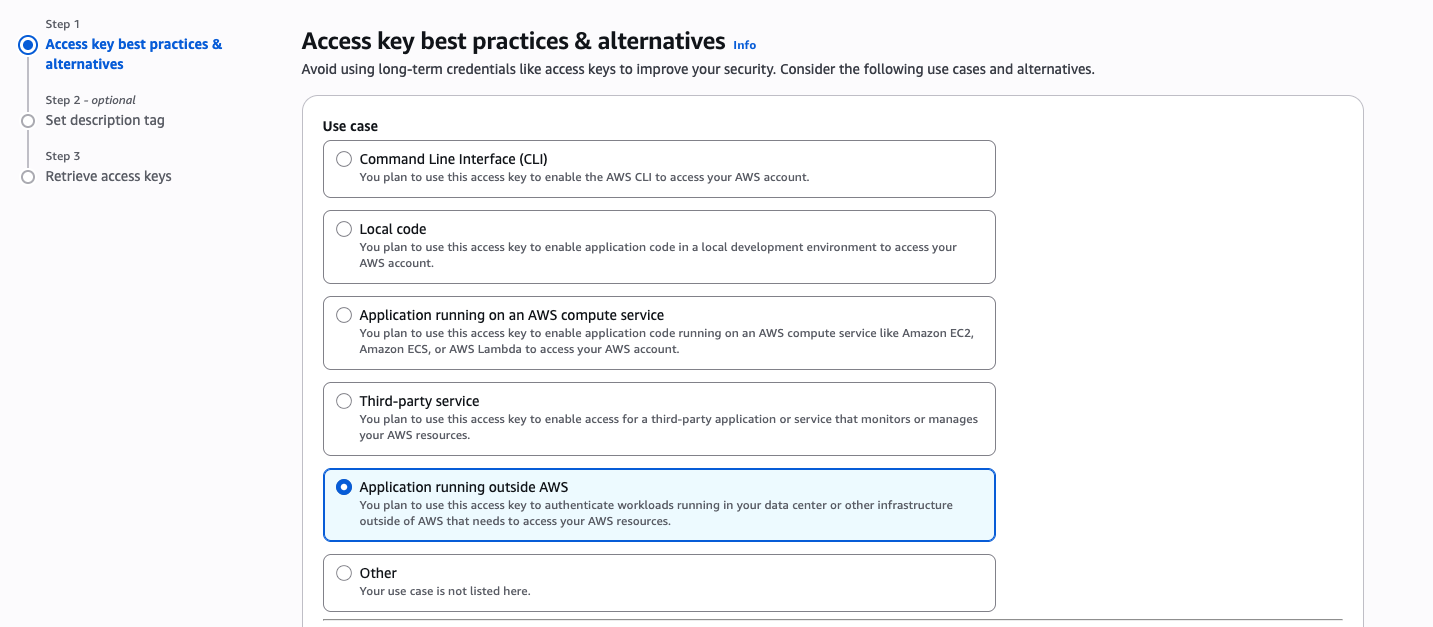
- Proceed by clicking Next and assign a descriptive name to the Access Key, such as Invicti ASPM Integration.
- Afterward, note the Access Key ID and Secret Access Key. The final required information for the integration is the Region value, which can be identified from the active Region displayed in the top-right corner of the AWS console.
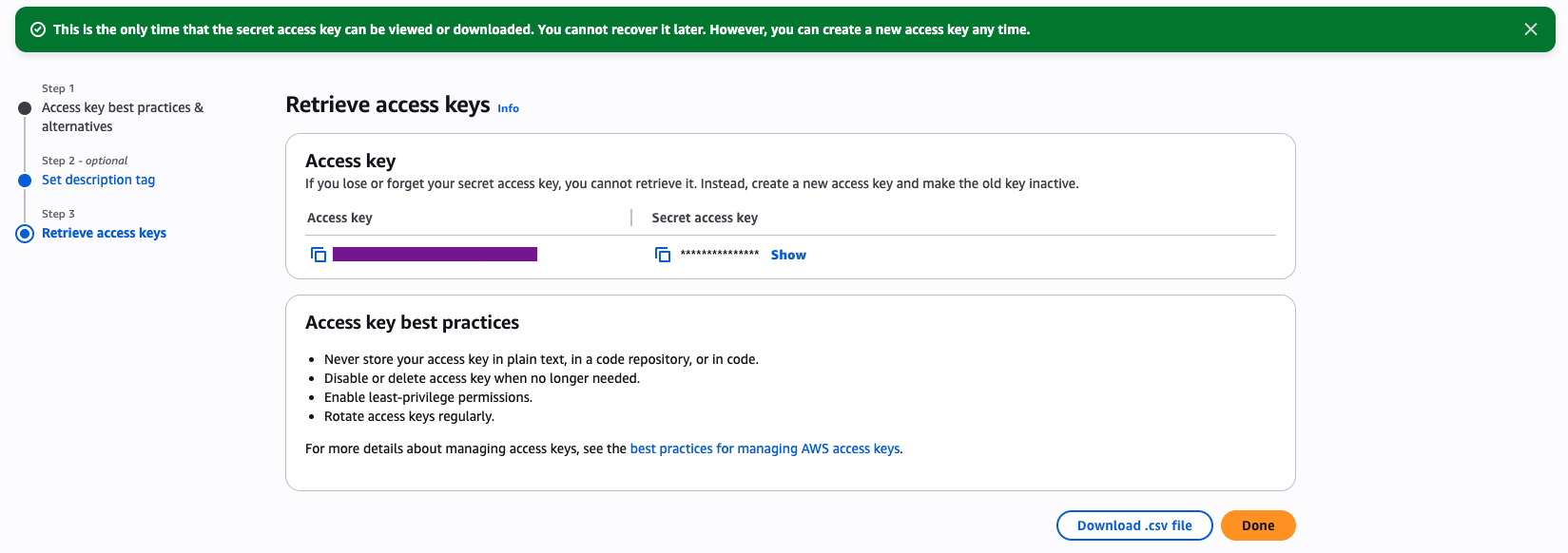
- To complete the integration, navigate within Invicti ASPM to Integrations ➡️ Scanners ➡️ CSPM, and enable Amazon Inspector CSPM by selecting the Active option.
- In the configuration screen, the Access Key ID, Secret Access Key, and Region should be entered. Afterward, the Test Connection button can be used to validate the configuration. Once a Connection Successful message is displayed, the integration can be saved and exited.
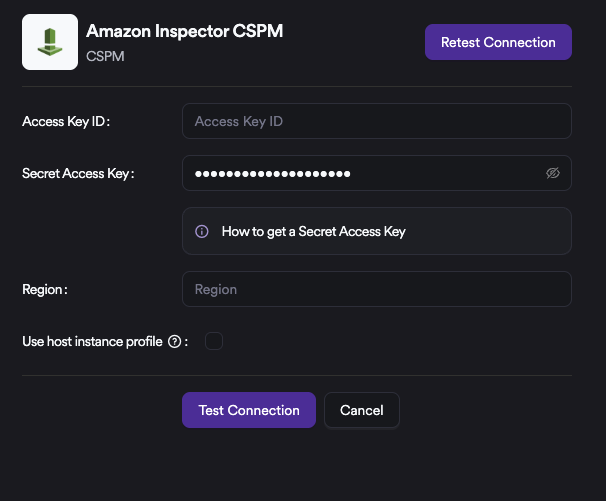
After the integration is successfully completed, navigate to the project where vulnerabilities will be added and create an Amazon Inspector CSPM scan parameter by selecting CSPM under Settings ➡️ Scanners. The vulnerabilities can then be reviewed through this project.
Updated 6 months ago