

SBOM Radar
Invicti ASPM supports SBOM Radar as a specialized SCA (Software Composition Analysis) tool. This guide explains how to activate and configure the SBOM Radar integration.
SBOM Radar is an Invicti ASPM built-in tool that automatically generates and analyzes Software Bill of Materials (SBOM) for your projects. It can be triggered alongside other scanner types (SAST, SCA, CS, IaC) to automatically produce an SBOM every time a qualifying scan completes, providing continuous visibility into your software supply chain.
Important: SBOM Radar is not a traditional scanner -- it is an automatic SBOM generation and analysis tool that runs alongside your existing scans. It does not use a Test Connection workflow. Instead, you configure which scan types trigger SBOM generation and select the generator tool.
Prerequisites
Before starting the integration, ensure you have the following:
| Requirement | Description |
|---|---|
| Existing scanner integrations | At least one active SAST, SCA, CS, or IaC scanner configured in Invicti ASPM |
| Project with scans | A project that receives scan results from one of the supported scanner types |
Step 1: Navigate to Integrations
From the left sidebar menu, click on Integrations.
Step 2: Select the SCA Tab
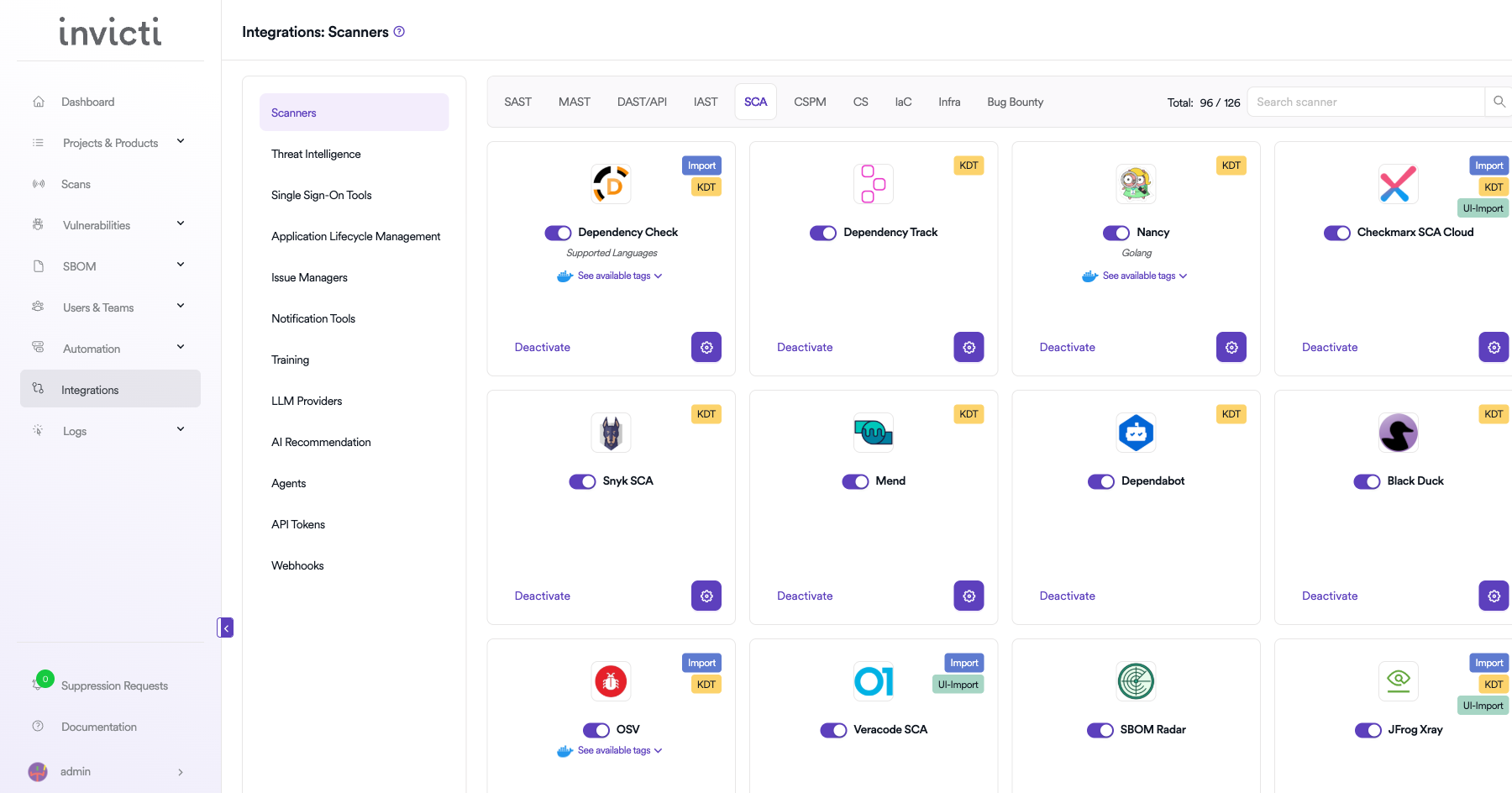
On the Integrations page, you will see the Scanners section with multiple tabs. Click on the SCA tab.
Step 3: Find and Activate SBOM Radar
Scroll through the list of SCA scanners to find SBOM Radar.
-
If SBOM Radar is not activated, you will see an "Activate" button. Click it to enable the integration.
-
If SBOM Radar is already activated, you will see a toggle switch in the ON position and a "Deactivate" button, along with a gear icon for configuration.
Note: SBOM Radar has an informational banner explaining that it automatically generates SBOMs when qualifying scans complete.
Step 4: Configure SBOM Generation Settings
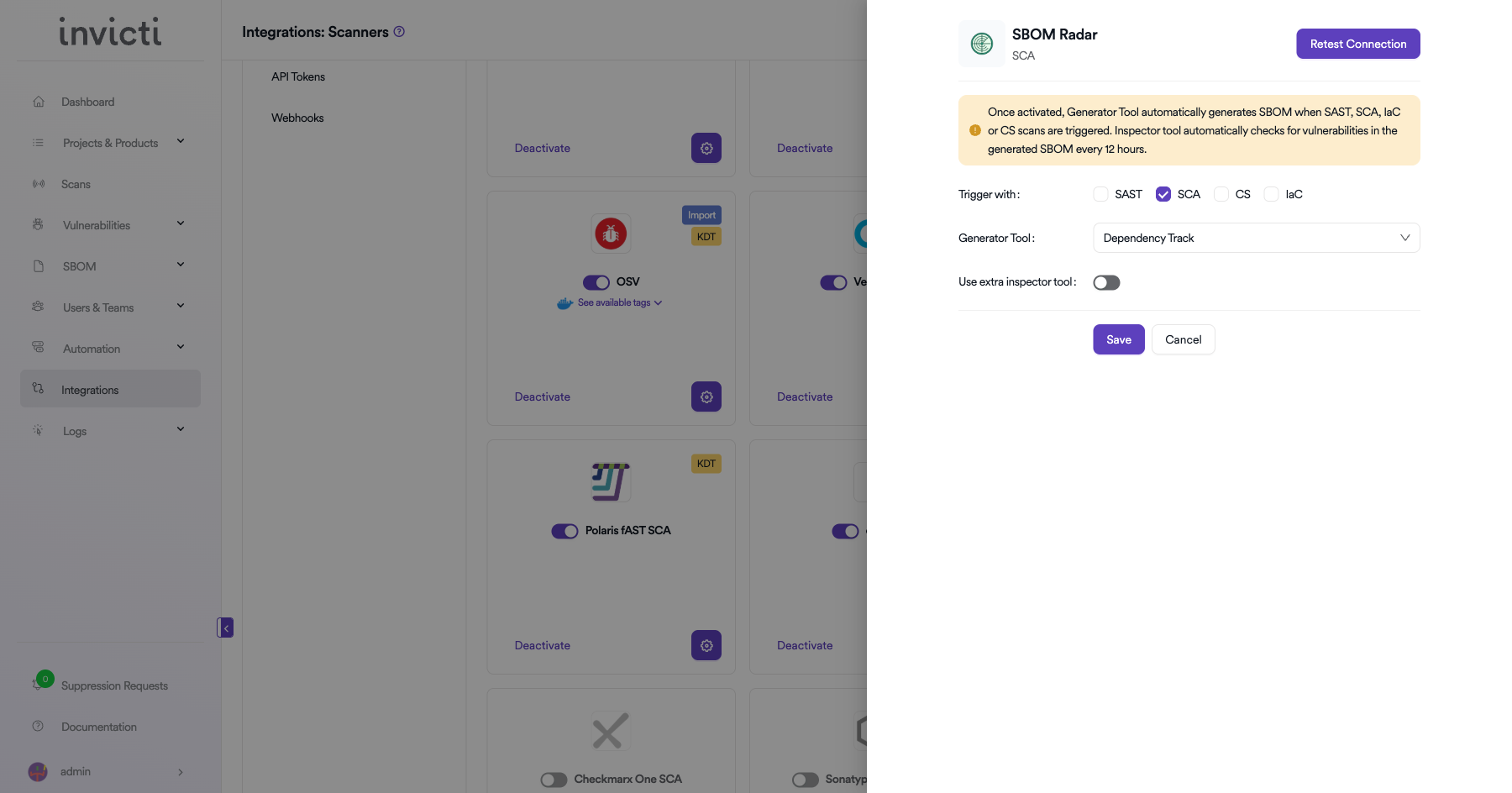
Click on the gear icon on the SBOM Radar card to open the configuration panel. Configure the following settings:
Trigger With
Select which scanner types should trigger automatic SBOM generation when their scans complete. You can enable one or more of the following checkboxes:
| Checkbox | Description |
|---|---|
| SAST | Generate SBOM when a SAST (Static Application Security Testing) scan completes |
| SCA | Generate SBOM when an SCA (Software Composition Analysis) scan completes |
| CS | Generate SBOM when a CS (Container Security) scan completes |
| IaC | Generate SBOM when an IaC (Infrastructure as Code) scan completes |
Generator Tool
Select the SBOM generator tool from the dropdown menu. The generator tool determines which underlying tool is used to create the SBOM document.
Use Extra Inspector Tool
Toggle this switch to enable an additional inspector tool that performs deeper analysis of the generated SBOM. When enabled, the SBOM will be analyzed for additional vulnerability and license information beyond what the generator tool provides.
Step 5: Save Configuration
After configuring the SBOM generation settings, click the "Save" button at the bottom of the configuration panel to apply your changes.
Note: SBOM Radar does not have a Test Connection button. The Save button applies your configuration immediately.
How SBOM Radar Works
Once configured, SBOM Radar operates automatically in the background:
- A scan of one of the selected types (SAST, SCA, CS, or IaC) completes for a project.
- SBOM Radar is triggered automatically based on your Trigger With configuration.
- The selected Generator Tool creates an SBOM document for the project.
- If Use Extra Inspector Tool is enabled, additional analysis is performed on the SBOM.
- The generated SBOM and any identified vulnerabilities are made available in the project's SBOM section.
Viewing SBOM Results
After SBOM Radar generates an SBOM:
- Navigate to your Project in Invicti ASPM.
- Go to the SBOM section to view the generated Software Bill of Materials.
- Review identified components, licenses, and any associated vulnerabilities.
Summary
| Step | Action |
|---|---|
| 1 | Navigate to Integrations from the sidebar |
| 2 | Select the SCA tab under Scanners |
| 3 | Find SBOM Radar and click Activate (if not already active) |
| 4 | Click the gear icon and configure Trigger With checkboxes, Generator Tool, and Use Extra Inspector Tool |
| 5 | Click Save to apply the configuration |
Updated 6 months ago