

HCL AppScan Standard DAST/API Integration
HCL AppScan Standard is a desktop-based DAST tool for testing web applications and APIs. In Invicti ASPM, AppScan Standard is an import-based scanner — you run scans in AppScan Standard independently and upload the exported report into Invicti ASPM.
Important: HCL AppScan Standard is an Import-based scanner. Scans are run locally in AppScan Standard, and the exported report file is imported into Invicti ASPM. No live connection to AppScan Standard is established.
Prerequisites
| Requirement | Description |
|---|---|
| HCL AppScan Standard | A licensed installation of HCL AppScan Standard on a Windows machine |
| Scan Report | A completed AppScan Standard scan exported in XML format (.xml) |
No AppScan Standard API credentials are needed for this integration.
Step 1: Navigate to Integrations
From the left sidebar menu, click on Integrations.
Step 2: Select the DAST/API Tab
On the Integrations > Scanners page, click on the DAST/API tab.
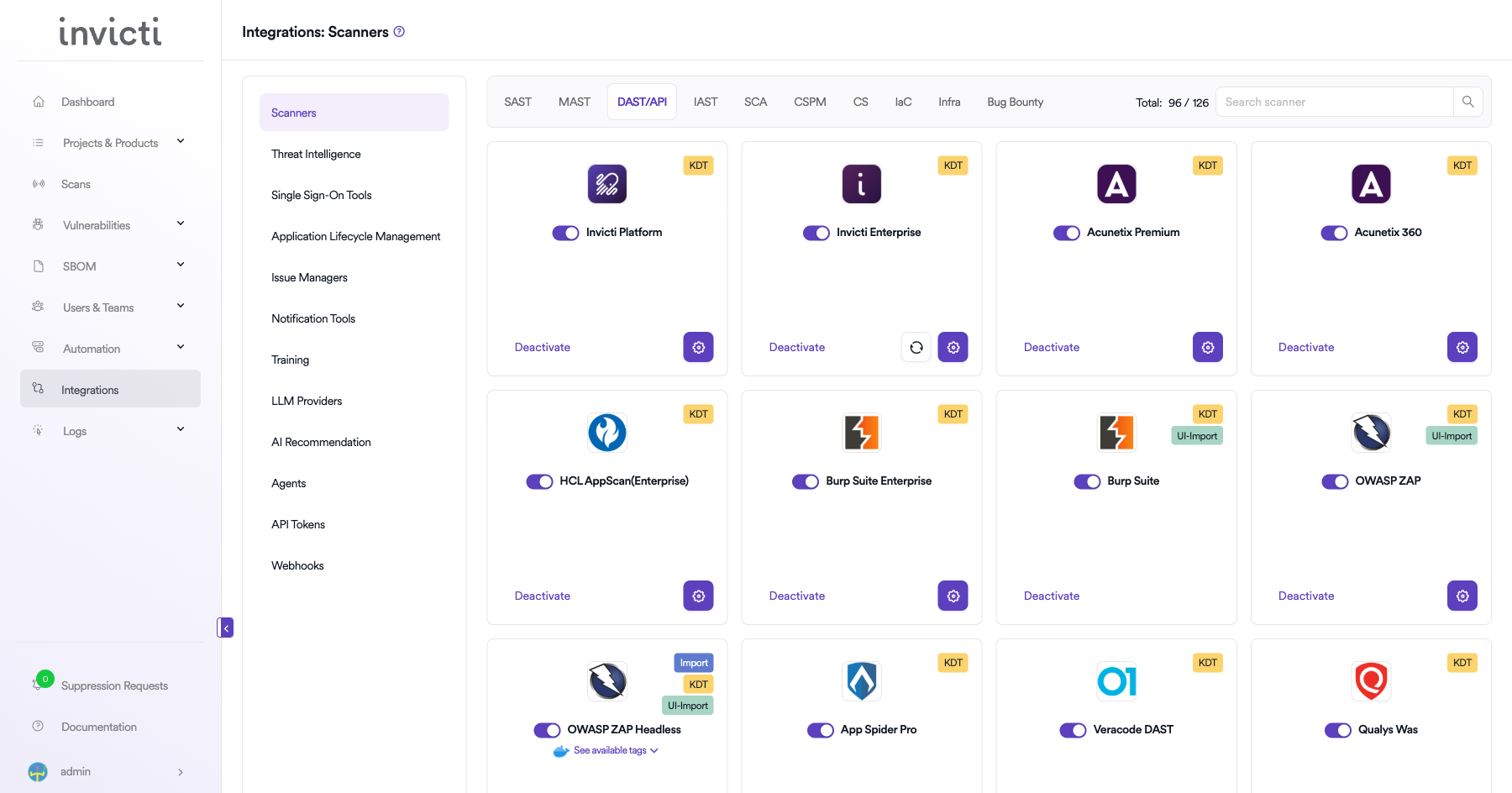
Step 3: Find and Activate HCL AppScan Standard
Scroll through the list of DAST/API scanners to find HCL AppScan Standard.
- If HCL AppScan Standard is not activated, you will see an "Activate" button. Click it to enable the integration.
Note: The scan method badge on the HCL AppScan Standard card shows UI-Import. No external API credentials or server connection are required. Scans are run locally in HCL AppScan Standard and the exported report is uploaded into Invicti ASPM.
Summary
| Step | Action |
|---|---|
| 1 | Navigate to Integrations from the sidebar |
| 2 | Select the DAST/API tab |
| 3 | Activate HCL AppScan Standard (no credentials needed) |
How to Import Results
Export from HCL AppScan Standard
- Open HCL AppScan Standard on your Windows machine.
- Complete a scan against your target application.
- Go to File > Save or Reports > Save Full Results.
- Select XML as the export format.
- Choose a file location and click Save.
Import into Invicti ASPM
Option A: UI Import
- Navigate to a project in Invicti ASPM.
- Go to Settings > Scanners > Add Scanner.
- Select DAST/API > HCL AppScan Standard.
- Click Import and upload the exported AppScan Standard report file (
.xml).
Option B: KDT CLI Import
kdt import -p <project_name> -t appscanstandard -f /path/to/appscan-standard-report.xmlSupported Export Formats
| Format | Description |
|---|---|
| XML | AppScan Standard XML export format |
How to Create a Scan (Import Flow)
Navigate to Project Scanners
- Open a project in Invicti ASPM.
- Go to Settings > Scanners.
- Click Add Scanner.
Add HCL AppScan Standard Scanner
- Select DAST/API as the scanner type.
- Choose HCL AppScan Standard from the scanner list.
- Click Add and follow the import steps above.
Scan Configuration Fields
| Field | Description | Required |
|---|---|---|
| Environment | Select the environment for the scan | No |
| Branch | Source code branch associated with this scan | No |
| Report File | AppScan Standard exported XML file to import | Yes |
Troubleshooting
Import Issues
| Issue | Resolution |
|---|---|
| File format not recognized | Ensure the export is in XML format; other formats may not be supported |
| Empty findings after import | Verify the AppScan Standard scan completed successfully before exporting |
| Import fails | Check that the XML file is not corrupted and conforms to the AppScan Standard export schema |
| Duplicate findings | Track which files have already been imported to avoid duplicating findings |
Best Practices
- Export scan reports immediately after scan completion.
- Use descriptive file names that include the scan date and target application for easy tracking.
- Import reports promptly to maintain current vulnerability status in Invicti ASPM.
- Validate that the exported XML file is complete and readable before importing.
Limitations
- This integration is import-only; Invicti ASPM cannot remotely trigger AppScan Standard scans.
- HCL AppScan Standard is a Windows-only desktop application; scan execution is manual.
- Only completed scan exports are supported; in-progress scan data cannot be imported.
- Supported format is limited to XML.
- Re-importing the same report may create duplicate findings if deduplication is not managed.
Updated 7 months ago