

Mattermost
Mattermost is an open-source, self-hostable team messaging platform designed for secure enterprise collaboration. The Invicti ASPM integration with Mattermost enables security teams to receive real-time notifications about vulnerability events — such as new critical findings, scan completions, or status changes — directly in Mattermost channels via a bot token.
Purpose in Invicti ASPM
Mattermost is used in Invicti ASPM as a Notification Tool — enabling automated security event notifications to be delivered to Mattermost channels.
| Use Case | Description |
|---|---|
| Vulnerability notifications | Receive alerts in a Mattermost channel when new vulnerabilities are discovered or when severity thresholds are crossed |
| Scan completion alerts | Get notified in Mattermost when a security scan completes |
| Status change updates | Receive updates when vulnerability statuses change (e.g., opened, resolved, re-opened) |
Where It Is Used
| Page | Navigation Path | Purpose |
|---|---|---|
| Integrations — Notification Tools | Integrations › Notification Tools | Admin activation and global configuration |
| Project Settings | Project › Settings › Notification Tools | Link Mattermost to a specific project for project-level notifications |
Prerequisites
Before activating the integration, gather the following from your Mattermost instance:
| Field | Description | Required |
|---|---|---|
| Token | A personal access token or bot token with permission to post messages to channels | Yes |
| URL | The base URL of your Mattermost server (e.g., https://mattermost.acme.com) | Yes |
| Insecure | Enable this option if your Mattermost server uses a self-signed SSL certificate | No |
How to Obtain Credentials (on the Mattermost Side)
Token (Personal Access Token):
- Log in to your Mattermost instance.
- Click your profile picture in the top-right corner and select Profile.
- In the left sidebar, click Security.
- Under Personal Access Tokens, click Create Token.
- Give the token a descriptive name (e.g.,
invicti-aspm) and click Save. - Copy the generated token — it will not be shown again after closing the dialog.
Note: Personal access tokens must be enabled by your Mattermost system administrator. If the option is not visible, ask your admin to enable it under System Console › Integrations › Integration Management.
Bot Token (Alternative):
- In Mattermost, go to Main Menu › Integrations › Bot Accounts.
- Click Add Bot Account and configure the bot with a username and display name.
- Copy the generated token. Ensure the bot is added to the channels where it should post notifications.
URL:
- Use the base URL of your Mattermost server, for example:
https://mattermost.acme.comorhttp://mattermost.internal:8065.
Activation Steps
Step 1: Navigate to Integrations
From the left sidebar, click Integrations.
Step 2: Open the Notification Tools Tab
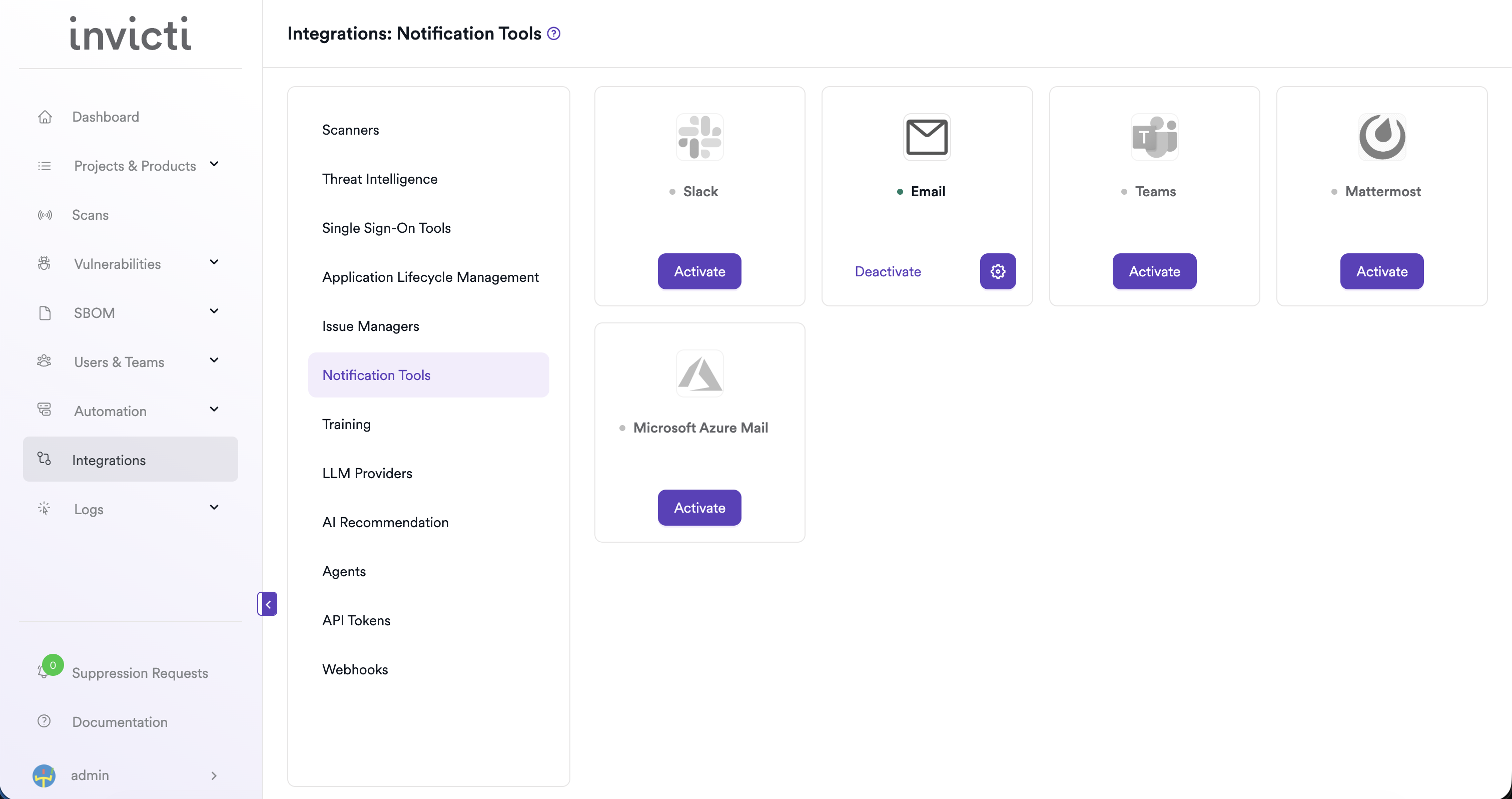
On the Integrations page, click the Notification Tools tab.
Step 3: Find and Activate Mattermost
Locate the Mattermost card.
- If it is not yet activated, click Activate to open the settings drawer.
- If it is already activated, click the gear icon to open the settings drawer and reconfigure.
Step 4: Fill In the Required Fields
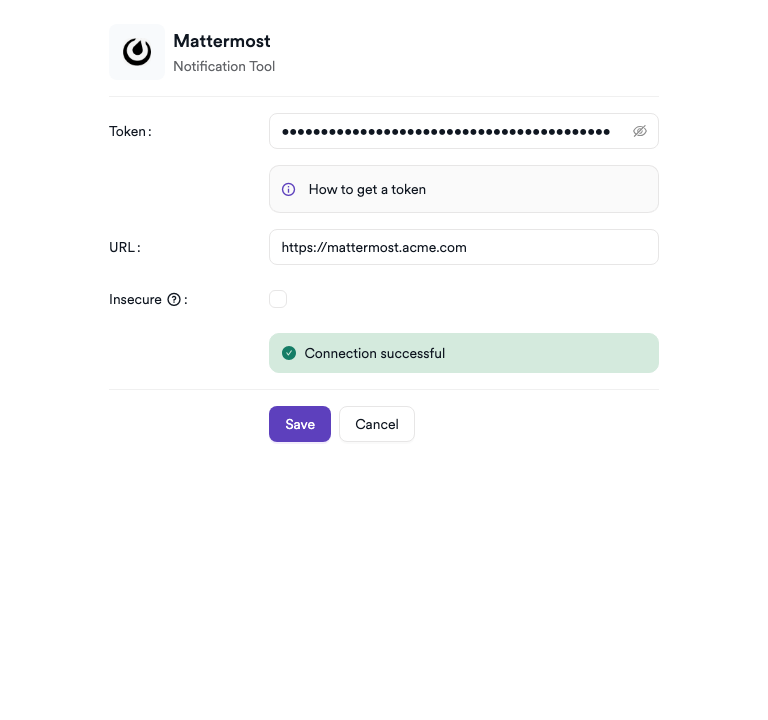
In the settings drawer, enter the following:
| Field | Description | Required |
|---|---|---|
| Token | Your Mattermost personal access token or bot token | Yes |
| URL | The base URL of your Mattermost server | Yes |
| Insecure | Check this box if your server uses a self-signed SSL certificate | No |
Step 5: Test the Connection
Click Test Connection. A green "Connection successful" message confirms that Invicti ASPM can reach your Mattermost instance with the provided credentials.
Step 6: Save
Click Save to complete the activation.
Summary
| Step | Action |
|---|---|
| 1 | Navigate to Integrations from the sidebar |
| 2 | Select the Notification Tools tab |
| 3 | Find Mattermost and click Activate (or the gear icon) |
| 4 | Enter your Token and URL |
| 5 | Click Test Connection — verify the success message |
| 6 | Click Save |
Troubleshooting
| Issue | Resolution |
|---|---|
| Connection failed | Verify the token is valid and the URL is correct and reachable from the Invicti ASPM network. |
| Token invalid or expired | Regenerate the personal access token or bot token in Mattermost and update the configuration in Invicti ASPM. |
| SSL / certificate error | Enable the Insecure option if your Mattermost server uses a self-signed certificate, or add the certificate to your trust store. |
| 403 Forbidden | Ensure the token belongs to a user or bot that has permission to post in the target channels. |
| Personal access tokens not available | Ask your Mattermost system administrator to enable personal access tokens under System Console › Integrations › Integration Management. |
Updated 6 months ago