

Semgrep Enterprise SCA
Semgrep Supply Chain is the SCA component of the Semgrep Enterprise platform. It performs reachability-aware open-source dependency scanning, identifying vulnerable dependencies in your codebase and determining whether vulnerable code paths are actually reachable. The Invicti ASPM integration connects to the Semgrep Cloud API using an API token and retrieves SCA findings for your configured deployments and projects.
Prerequisites
| Field | Description |
|---|---|
| API Token | A Semgrep Cloud platform API token with access to your organization's deployment |
How to Get an API Token (on Semgrep Side)
-
Log in to your Semgrep Cloud platform account at https://semgrep.dev .
-
Click your profile icon or navigate to Settings in the left sidebar.
-
Go to Tokens (or API Tokens).
-
Click Create new token, provide a name, and select the appropriate scope.
-
Click Save and copy the token immediately — it will not be shown again.
Note: The API token must have read access to your organization's deployment and project scan results. Contact your Semgrep administrator if you need help obtaining the correct permissions.
Step 1: Navigate to Integrations
From the left sidebar menu, click on Integrations.
Step 2: Select the SCA Tab
On the Integrations > Scanners page, click on the SCA tab.
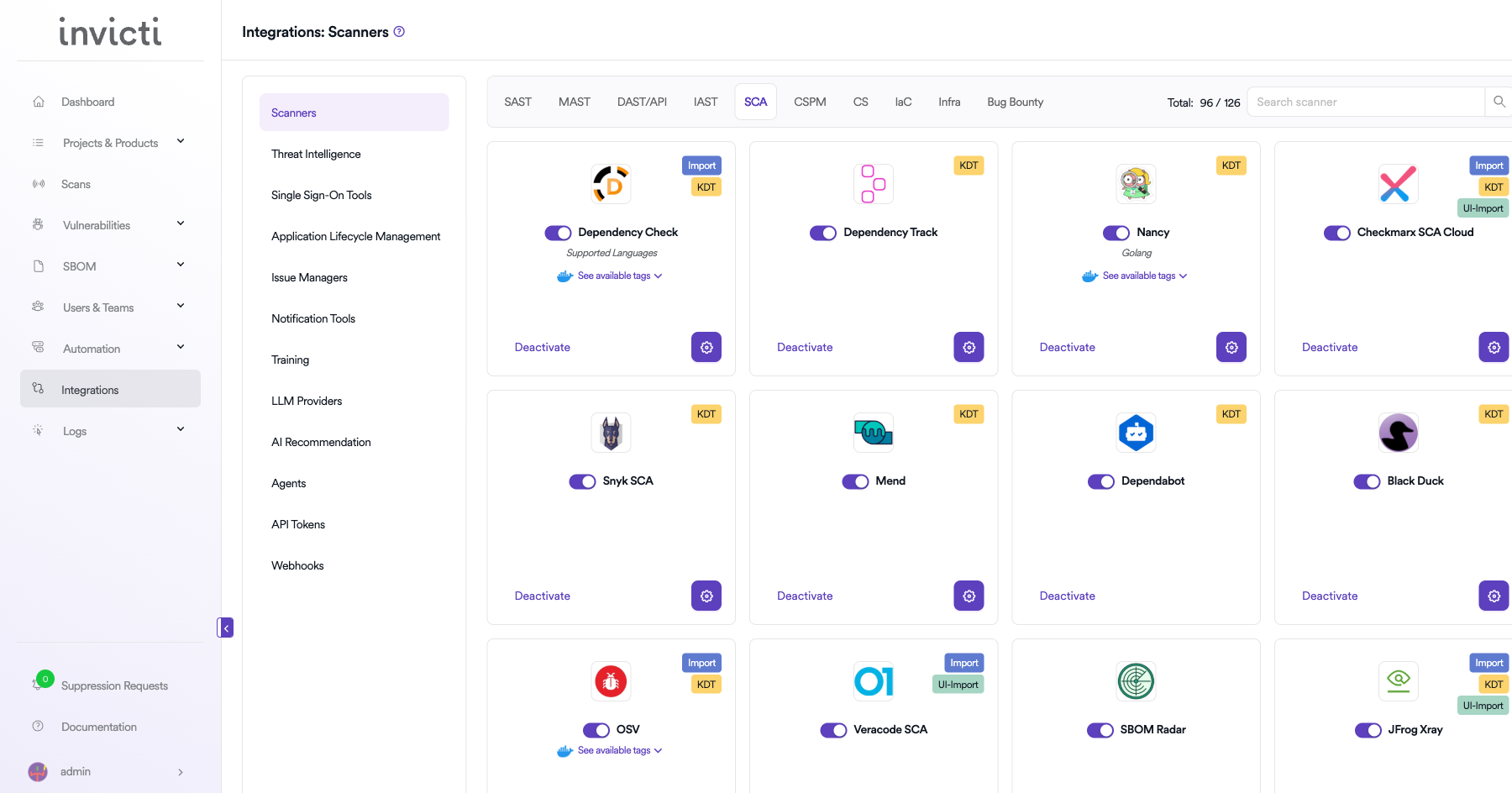
Step 3: Find and Activate Semgrep Enterprise SCA
Scroll through the list of SCA scanners to find Semgrep Enterprise SCA.
-
If Semgrep Enterprise SCA is not activated, click the Activate button to enable the integration.
Note: The scan method badges on the Semgrep Enterprise SCA card include Bind, KDT, Import, and UI-Import.
Step 4: Configure Connection Settings
Click the gear icon on the Semgrep Enterprise SCA card to open the settings panel. Fill in the required fields:
| Field | Description | Required |
|---|---|---|
| API Token | Your Semgrep Cloud platform API token | Yes |
Note: Semgrep Enterprise SCA connects directly to
https://semgrep.dev/api/v1/. No URL configuration is needed — the integration uses the Semgrep Cloud API endpoint automatically.
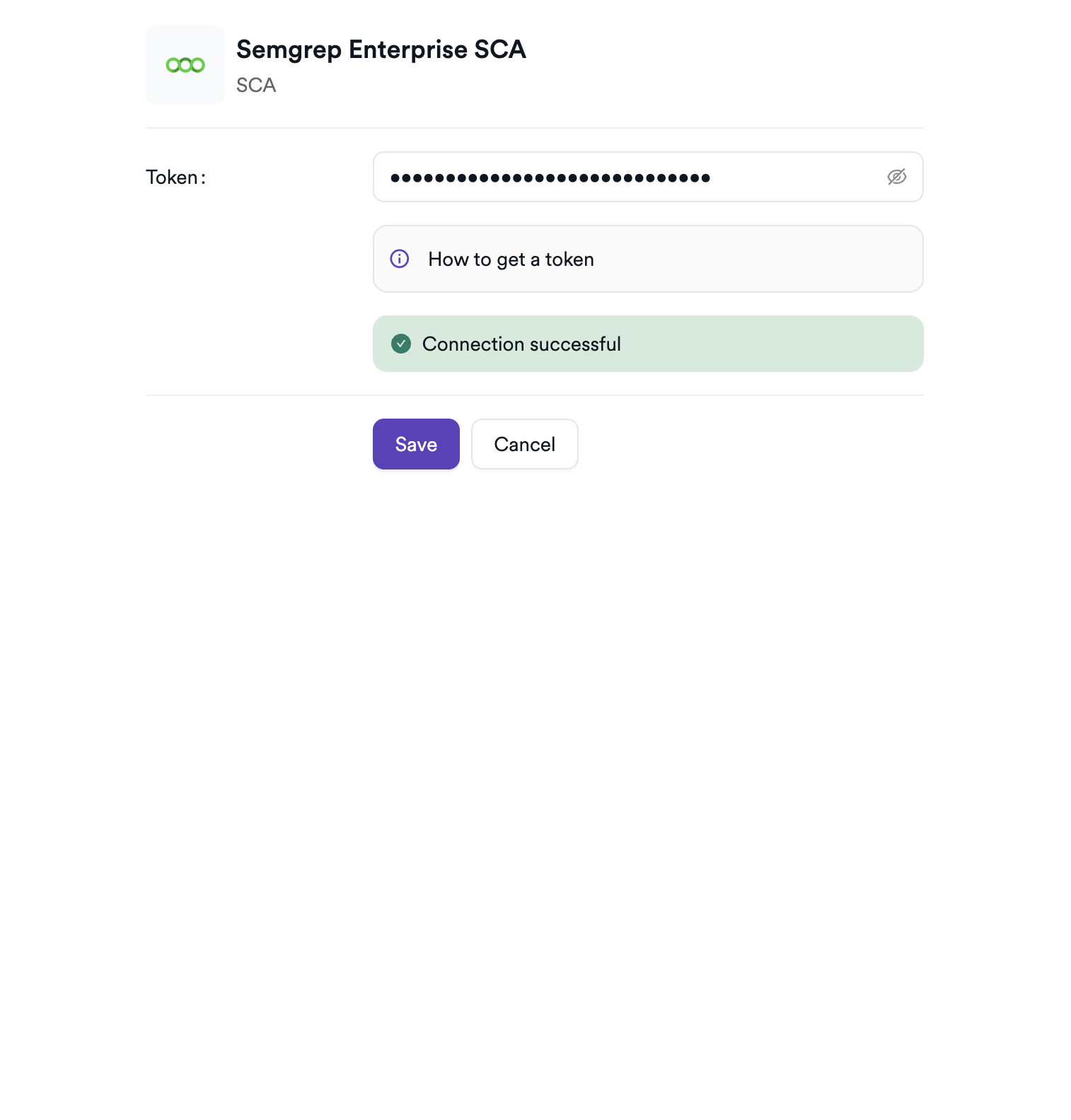
Step 5: Test the Connection
Click Test Connection. A green Connection successful message confirms that Invicti ASPM can authenticate with your Semgrep Cloud account.
Summary
| Step | Action |
|---|---|
| 1 | Navigate to Integrations from the sidebar |
| 2 | Select the SCA tab |
| 3 | Activate Semgrep Enterprise SCA |
| 4 | Enter the API Token |
| 5 | Test the connection |
How to Create a Scan
Navigate to Project Scanners
- Open a project in Invicti ASPM.
- Go to Settings > Scanners.
- Click Add Scanner.
Add Semgrep Enterprise SCA Scanner
- Select SCA as the scanner type.
- Choose Semgrep Enterprise SCA from the scanner list.
- Click Add to open the scan configuration drawer.
Scan Configuration Fields
| Field | Description | Required |
|---|---|---|
| Environment | Select the environment for the scan | No |
| Project | Select the Semgrep Cloud project (repository) to retrieve findings for | Yes |
| Branch | Source code branch associated with this scan | No |
| Meta Data | Additional metadata for the scan | No |
| Scan Tag | Tag to identify the scan | No |
Note: The Project field is a searchable dropdown loaded from your Semgrep Cloud deployment. The selected project name is used to filter Supply Chain findings by repository.
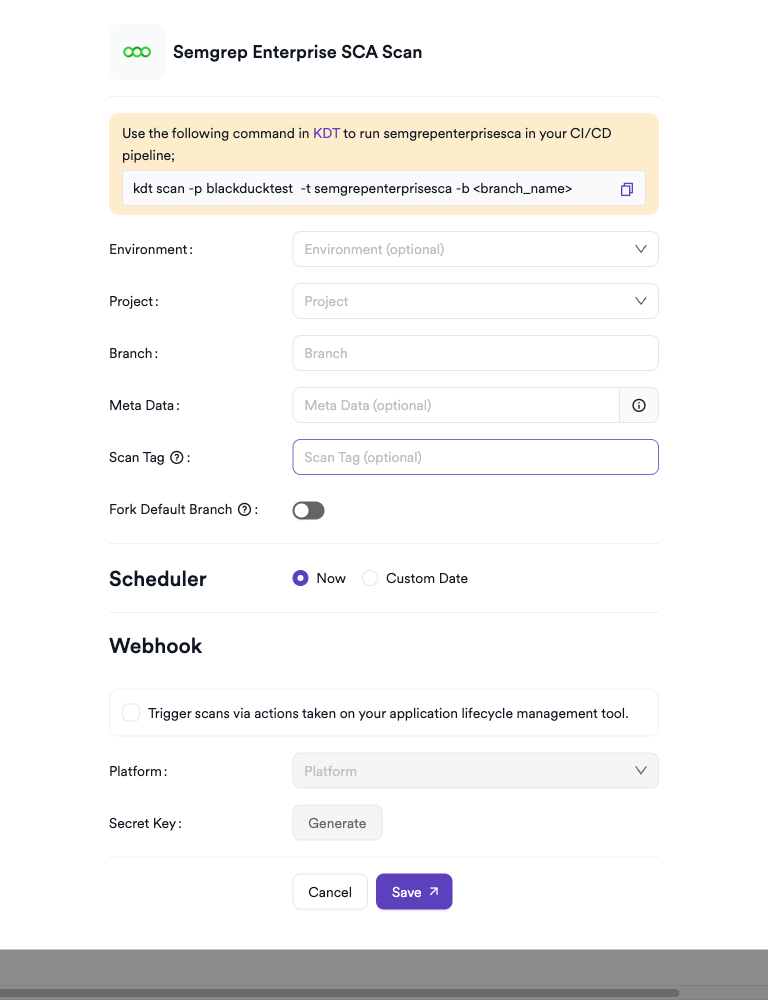
Scheduler
Enable the Scheduler toggle to run Semgrep Enterprise SCA scans on a recurring schedule.
Webhook (Optional)
Add a webhook URL to receive scan completion notifications.
KDT Command
kdt scan -p <project_name> -t semgrepenterprisesca -b <branch_name>Troubleshooting
Connection Fails
| Issue | Resolution |
|---|---|
| 401 Unauthorized | Verify the API token is valid and has not expired. Regenerate from Semgrep Cloud if needed. |
| 403 Forbidden | The API token lacks access to the deployment. Check token scope in Semgrep Cloud settings. |
| Deployment not found | Ensure your Semgrep Cloud organization has an active deployment configured. |
Scan Issues
| Issue | Resolution |
|---|---|
| Project not found / empty results | Verify the Project Name in the scan configuration exactly matches the repository name in your Semgrep Cloud deployment (case-sensitive). |
| Empty results | The project may have no completed Supply Chain scans, or the latest scan found no vulnerabilities. Check scan history in the Semgrep Cloud portal. |
| Import fails | Ensure the uploaded file is a valid Semgrep Supply Chain export. Check that the export was generated from Semgrep Supply Chain, not another Semgrep product. |
Best Practices
- Use a dedicated Semgrep service account API token for the Invicti ASPM integration rather than a personal token, to avoid disruption if team members leave.
- Rotate the API token periodically and update the integration settings accordingly.
- Ensure Semgrep Supply Chain scans are completed in your CI/CD pipeline before triggering a fetch in Invicti ASPM to get up-to-date results.
- Take advantage of Semgrep's reachability analysis — findings marked as reachable should be prioritized for remediation.
Limitations
- The integration connects exclusively to the Semgrep Cloud platform (
https://semgrep.dev); self-hosted or on-premises Semgrep deployments are not supported. - Only Supply Chain (SCA) findings are retrieved — Semgrep SAST results are not imported into Invicti ASPM through this integration.
- The integration retrieves existing completed scan results; it does not trigger new Semgrep scans from Invicti ASPM.
- Only the most recent completed scan results for the specified project are retrieved.
Updated 6 months ago