

Sonatype Nexus Lifecycle SCA
Sonatype Nexus Lifecycle (Nexus IQ Server) is a software composition analysis platform that identifies open-source component risks, policy violations, and license compliance issues across your development pipeline. Invicti AppSec integrates with Sonatype Nexus Lifecycle as a connection-based SCA scanner, binding to existing Nexus IQ applications to pull vulnerability and policy data directly into the platform.
Prerequisites
| Requirement | Description |
|---|---|
| Username | A Sonatype Nexus IQ user account with access to the applications you want to scan |
| Password | The password for the Nexus IQ user account |
| Nexus IQ URL | The base URL of your Sonatype Nexus IQ Server instance (e.g., https://nexus-iq.your-company.com) |
| Nexus IQ Applications | At least one application configured in your Nexus IQ instance that will be bound for scanning |
Get Nexus IQ Credentials
Sonatype Nexus Lifecycle uses standard basic authentication (username and password) rather than API tokens.
- Log in to your Sonatype Nexus IQ Server instance as an administrator.
- Navigate to System Preferences → User Management (or Administration → Security → Users).
- Create a dedicated service account for the Invicti AppSec integration, or use an existing account with appropriate permissions.
- Ensure the account has read access to the Nexus IQ applications you intend to scan.
- Note the username and password — these will be entered in the Invicti AppSec integration settings.
Best practice: Create a dedicated service account (svc-invicti or similar) with read-only access to the relevant applications, rather than using a personal admin account.
Step 1: Navigate to Integrations
From the left sidebar menu, click on Integrations.
Step 2: Select the SCA Tab
On the Integrations page, click on the SCA tab to view the Software Composition Analysis scanners.
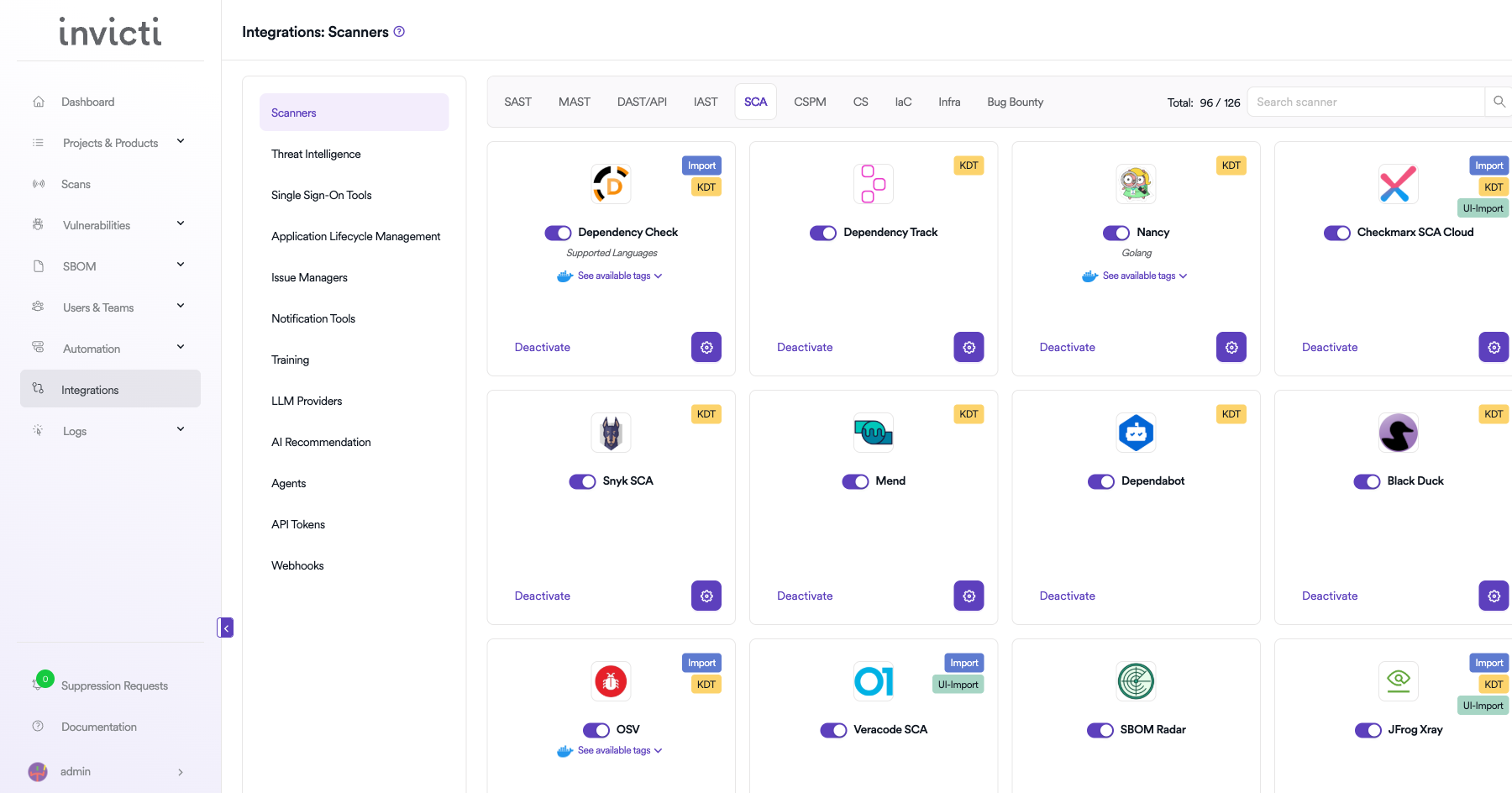
Step 3: Find and Activate Sonatype Nexus Lifecycle
Locate the Sonatype Nexus Lifecycle card in the SCA scanners list. The card displays the following scan method badges:
- Bind — Requires binding to an existing Sonatype Nexus IQ application
- KDT — Supports triggering scans via the KDT CLI
- Import — Supports importing scan results via KDT CLI using Nexus IQ report files
- Create — Supports creating new applications directly in Nexus IQ from Invicti AppSec
Click the Activate button on the Sonatype Nexus Lifecycle card to open the configuration drawer.
If the integration is already active, click the gear icon (⚙️) to open the settings drawer and update the configuration.
Step 4: Configure Connection Settings
Fill in the following fields in the Sonatype Nexus Lifecycle settings drawer:
| Field | Type | Required | Description |
|---|---|---|---|
| Username | Text input | Yes | The username of the Nexus IQ service account used for API authentication. |
| Password | Password input | Yes | The password for the Nexus IQ service account. Displayed as masked dots. |
| URL | Text input | Yes | The base URL of your Sonatype Nexus IQ Server (without trailing path). Example: https://nexus-iq.your-company.com |
| Insecure | Checkbox | No | Disables SSL/TLS certificate verification. Enable only if your Nexus IQ instance uses self-signed certificates. Not recommended for production. |
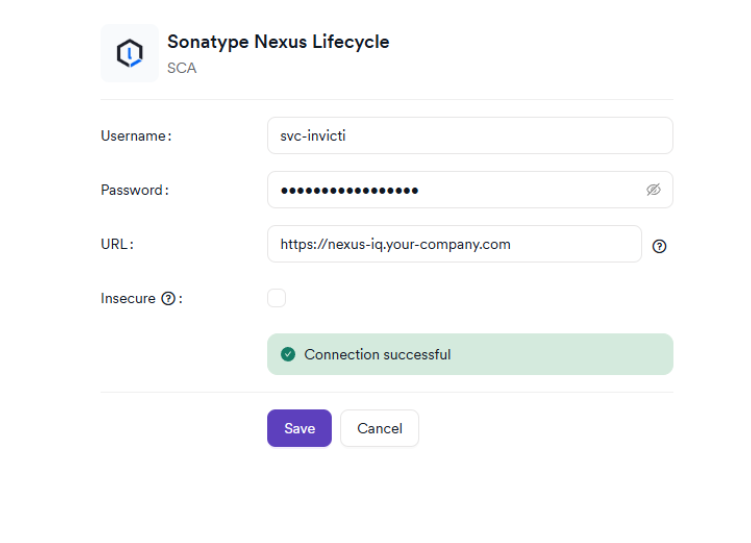
The URL must be the base URL of your Nexus IQ Server without any trailing path segments. For example, use
https://nexus-iq.your-company.com, nothttps://nexus-iq.your-company.com/nexus-iq.
Step 5: Test the Connection
After entering all required fields, click Test Connection.
- If the credentials and URL are correct, a green "Connection successful" message will appear.
- If the connection fails, verify your username, password, and URL. See the Troubleshooting section below.
Step 6: Save Settings
After a successful test connection, click Save to activate the integration.
The Sonatype Nexus Lifecycle card on the SCA integrations page will display an active status, confirming the integration is running.
Summary
| Step | Action |
|---|---|
| 1 | Navigate to Integrations from the left sidebar |
| 2 | Click the SCA tab |
| 3 | Locate the Sonatype Nexus Lifecycle card and click Activate |
| 4 | Enter Username, Password, and URL |
| 5 | (Optional) Enable Insecure if using self-signed certificates |
| 6 | Click Test Connection and verify the green "Connection successful" message |
| 7 | Click Save to activate the integration |
Create a Scan
Once the Sonatype Nexus Lifecycle integration is active, you can bind it to a project to run scans.
Navigate to Project Scanners
- Open the project you want to configure.
- Go to Settings → Scanners within the project.
- Click Add Scanner.
- Select SCA as the scanner type.
- Select Sonatype Nexus Lifecycle from the scanner list.
- Click Add to open the scan configuration drawer.
Scan Configuration Fields
| Field | Type | Required | Description |
|---|---|---|---|
| Environment | Dropdown | No | Select the environment for this scan (e.g., feature, release). Defaults to none. |
| Trigger Type | Radio buttons | Yes | Choose "Bind to a Sonatype App" to link to an existing application, or "Create New Scan" to create a new application in Nexus IQ. |
| Bind To | Searchable dropdown | Yes | Select the Sonatype Nexus IQ application to bind this scan to. Applications are fetched from your Nexus IQ instance. |
| Stage | Dropdown | Yes* | Select the Nexus IQ evaluation stage. Available stages depend on the selected application and include: source, build, stage-release, release, compliance. |
| Branch | Auto-complete | Yes | The source repository branch to use for this scan. |
| Metadata | Text input | No | Optional metadata string for the scan. Used for filtering and reporting. |
| Scan Tag | Text input | No | Optional tag to organize and group related scans. |
| Fork Default Branch | Toggle | No | When enabled, Invicti forks from the project default branch before scanning. Useful for scan isolation. |
Stage is required when a Nexus IQ application is selected.
Available Stages
| Stage | Description |
|---|---|
| source | Evaluates source code before any build process (default for early-stage analysis) |
| build | Evaluates dependencies at the build stage |
| stage-release | Pre-release stage evaluation |
| release | Final release evaluation |
| compliance | Compliance and policy enforcement evaluation |
Trigger Type: Create New Scan
If you select "Create New Scan" instead of binding to an existing application, Invicti AppSec will prompt you to select a Sonatype Organization. Once confirmed, a new application is created in your Nexus IQ instance and linked to the project.
| Field | Description |
|---|---|
| Organization | Select from the list of organizations available in your Nexus IQ instance. |
KDT Command
Once the scan is configured, you can also trigger it via the KDT CLI:
kdt scan -p <project_name> -t sonatypenl -b <branch_name>Troubleshooting
Connection Fails
| Problem | Possible Cause | Solution |
|---|---|---|
| "Connection failed" on Test Connection | Invalid username or password | Verify the Nexus IQ credentials are correct. Check that the account is not locked or expired. |
| "Connection failed" — URL error | Incorrect base URL | Ensure the URL points to the root of your Nexus IQ instance with no trailing path. Use https://nexus-iq.your-company.com, not https://nexus-iq.your-company.com/nexus-iq. |
| SSL/TLS certificate error | Self-signed or untrusted certificate | Enable the Insecure checkbox if your Nexus IQ instance uses a self-signed certificate. This is not recommended for production. |
| Network error / cannot reach server | Firewall or proxy blocking outbound HTTPS | Verify that Invicti AppSec can reach your Nexus IQ URL over HTTPS. Check firewall rules, proxy settings, and VPN requirements. |
Scan Issues
| Problem | Possible Cause | Solution |
|---|---|---|
| No applications available in "Bind To" dropdown | The Nexus IQ account lacks access, or no applications exist | Verify that the service account has read access to applications in Nexus IQ. Check that at least one application is configured in your Nexus IQ instance. |
| Stage dropdown is empty after selecting application | The application has no stages configured | Check the Nexus IQ application configuration. Ensure it is associated with at least one pipeline stage. |
| Scan starts but reports no findings | Empty policy evaluation result or no dependencies | Verify that the application has been evaluated in Nexus IQ previously. Confirm that the selected stage and branch contain dependency data. |
| Fork Scan warning — fork source branch not defined | Feature environment requires a fork source branch | Navigate to Project Settings → Feature Branch Management to define the fork source branch for the project. |
Best Practices
-
Use a dedicated service account: Create a Sonatype Nexus IQ service account specifically for the Invicti AppSec integration. This avoids disruption if personal account credentials change and simplifies permission management.
-
Select the appropriate stage for your pipeline: Match the evaluation stage to your development workflow. Use
sourcefor early-stage analysis during development,buildfor CI/CD pipeline evaluation, andreleasefor final pre-deployment checks. -
Bind to specific applications per project: Each Invicti AppSec project should bind to the corresponding Nexus IQ application. Avoid binding multiple unrelated projects to the same application, as this can mix scan results.
-
Use HTTPS: Ensure your Nexus IQ Server is accessible over HTTPS. Avoid enabling the Insecure option in production environments, as it disables certificate verification.
-
Leverage Metadata for filtering: Use the Metadata field to tag scans with build IDs, release versions, or environment identifiers. This makes it easier to correlate Invicti AppSec findings with specific build artifacts in Nexus IQ.
Limitations
-
Requires existing Nexus IQ instance: Sonatype Nexus Lifecycle must already be installed and configured in your environment. Invicti AppSec connects to your existing server — it does not provision or manage Nexus IQ.
-
Application binding required: Each scan must be bound to a specific Nexus IQ application. Ad-hoc scanning without an existing application requires creating one in Nexus IQ first (either manually or via the "Create New Scan" option).
-
Stage availability depends on application: The list of available evaluation stages is determined by how each application is configured in Nexus IQ. Not all stages may be available for every application.
-
On-premises or network-accessible deployments only: Invicti AppSec must be able to reach your Nexus IQ Server over HTTPS. Cloud-hosted Nexus IQ instances must have a publicly accessible or VPN-reachable URL.
Updated 6 months ago