

Orca Security CSPM Integration
Orca Security provides agentless cloud security posture management, detecting misconfigurations, vulnerabilities, and compliance violations across cloud environments. In Invicti ASPM, the Orca Security integration connects to your Orca account to import cloud security findings into your projects.
Prerequisites
Orca Security supports two authentication methods. Use one of the following:
Option A — Username & Password
| Field | Description |
|---|---|
| Username | Orca Security API username (email address) |
| Password | Orca Security API password |
| API URL | Base URL of your Orca Security API endpoint |
Option B — API Token
| Field | Description |
|---|---|
| Token | Orca Security API token |
| API URL | Base URL of your Orca Security API endpoint |
If both a token and username/password are provided, the token takes precedence.
How to Get API Credentials (on Orca Side)
For username/password authentication:
- Log in to the Orca Security console.
- Navigate to Settings > Users or API Access.
- Create a dedicated API user or generate API credentials.
- Copy the Username, Password, and note the API URL for your Orca instance.
For token authentication:
- Log in to the Orca Security console.
- Navigate to Settings > API or Integrations.
- Generate an API token.
- Copy the token and note the API URL for your Orca instance.
Step 1: Navigate to Integrations
From the left sidebar menu, click on Integrations.
Step 2: Select the CSPM Tab
On the Integrations > Scanners page, click on the CSPM tab.
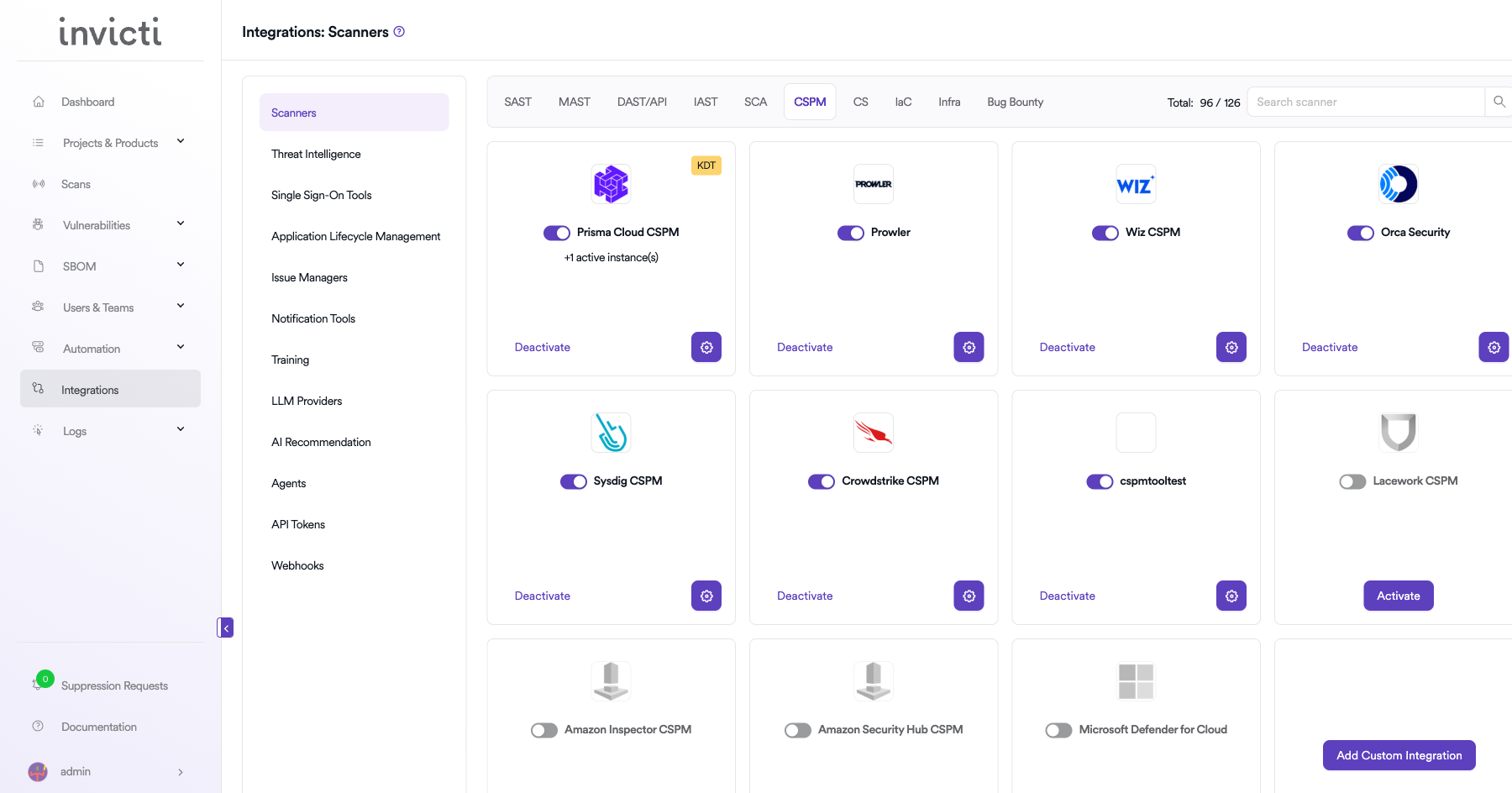
Step 3: Find and Activate Orca Security
Scroll through the list of CSPM scanners to find Orca Security.
- If Orca Security is not activated, click the Activate button to enable the integration.
Step 4: Configure Connection Settings
Click the gear icon on the Orca Security card to open the settings panel. Fill in the required fields:
Username & Password authentication:
| Field | Description | Required |
|---|---|---|
| Username | Orca Security API username (email address) | Yes |
| Password | Orca Security API password | Yes |
| API URL | Base URL of your Orca Security instance | Yes |
Token authentication:
| Field | Description | Required |
|---|---|---|
| Token | Orca Security API token | Yes |
| API URL | Base URL of your Orca Security instance | Yes |
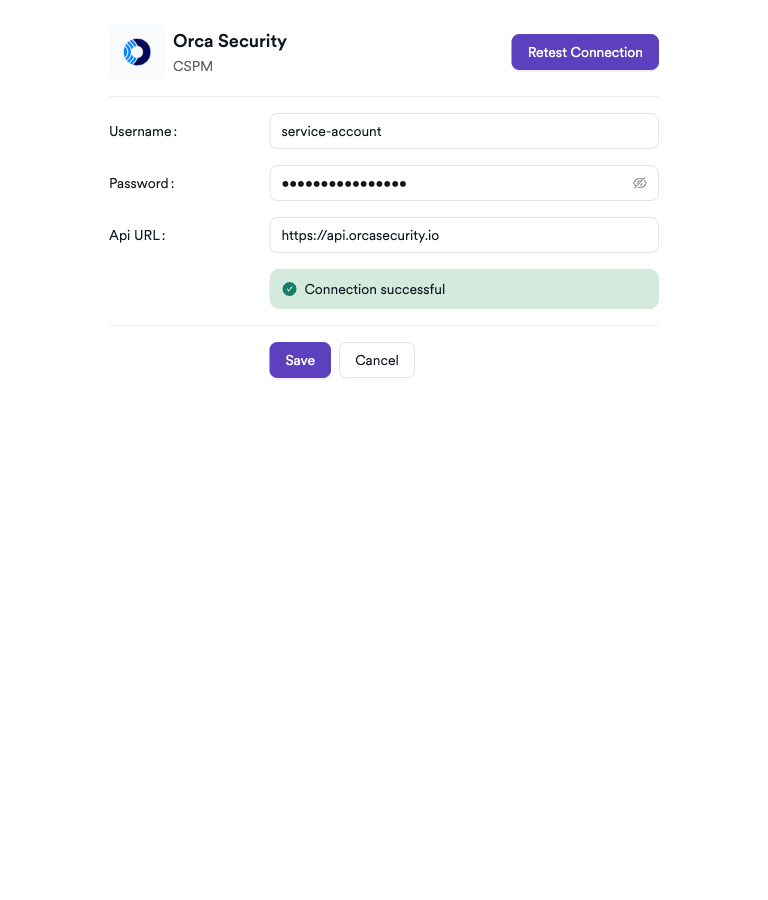
Step 5: Test the Connection
Click Test Connection. A green Connection successful message confirms that Invicti ASPM can authenticate with the Orca Security API.
Summary
| Step | Action |
|---|---|
| 1 | Navigate to Integrations from the sidebar |
| 2 | Select the CSPM tab |
| 3 | Activate Orca Security |
| 4 | Enter API URL and credentials (username/password or API token) |
| 5 | Test the connection |
How to Create a Scan
Navigate to Project Scanners
- Open a project in Invicti ASPM.
- Go to Settings > Scanners.
- Click Add Scanner.
Add Orca Security Scanner
- Select CSPM as the scanner type.
- Choose Orca Security from the scanner list.
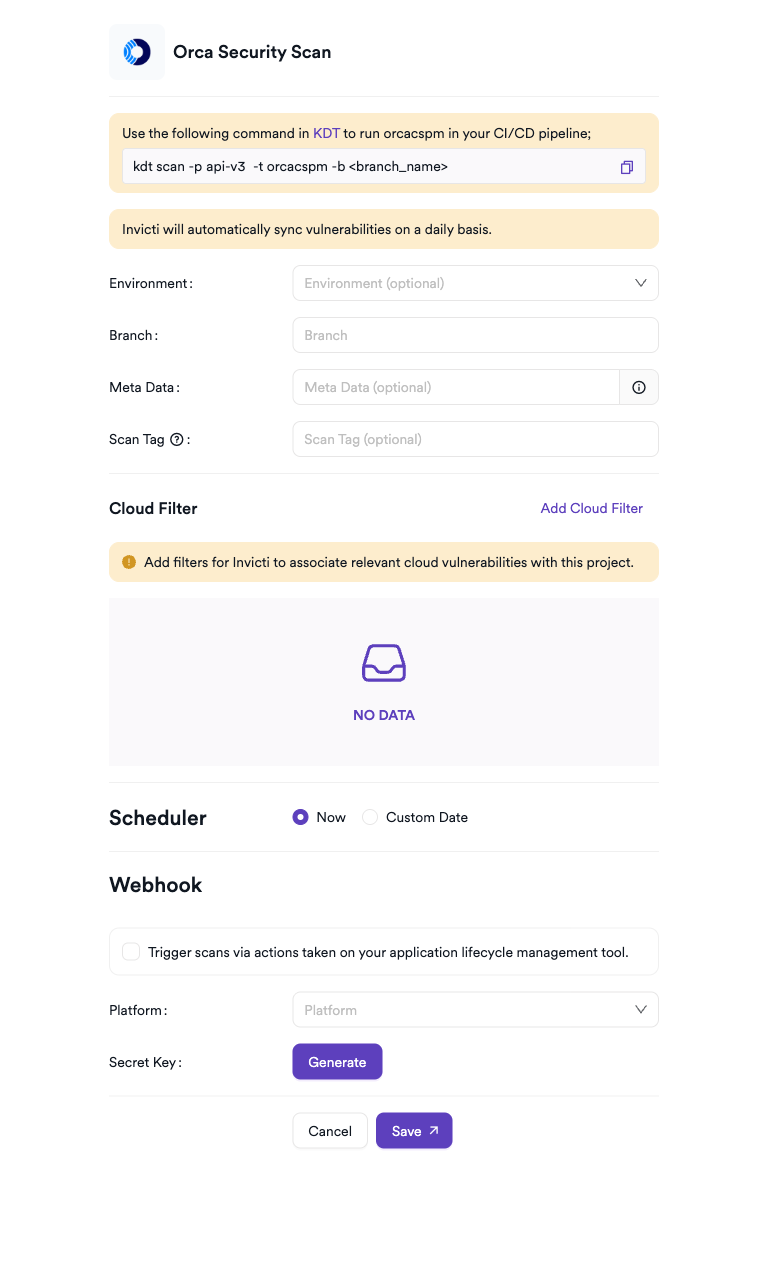
- Click Add to open the scan configuration drawer.
Scan Configuration Fields
| Field | Description | Required |
|---|---|---|
| Environment | Associate the scan with a feature environment | No |
| Branch | The branch to associate cloud findings with | Yes |
| Meta Data | Additional metadata to tag the scan | No |
| Scan Tag | Free-text tag to identify or group scans | No |
| Cloud Filter | Filter imported findings by Asset Name, Image, Region, Platform, Asset Type, Severity, or IP Address | No |
Invicti ASPM automatically syncs Orca Security vulnerabilities on a daily basis — no manual trigger is required after the initial scan is configured.
Cloud Filter lets you narrow which findings are imported into this project. You can filter by Asset Name, Image, Region, Cloud Platform, Asset Type, Severity, and IP Address. If no filter is set, all findings accessible via the API credentials are imported.
Scheduler
Enable the Scheduler toggle to automatically re-run the Orca Security scan on a recurring schedule.
Webhook (Optional)
Add a webhook URL to receive scan completion notifications.
KDT Command
kdt scan -p <project_name> -t orcacspm -b <branch_name>Imported Vulnerability Data
For each finding imported from Orca Security, Invicti ASPM captures the following data:
| Field | Source | Description |
|---|---|---|
| Name | Orca finding name | Vulnerability title |
| Severity | Orca vendor severity | Mapped to ASPM severity levels |
| CVSSv3 Score | Orca score | Used if available; falls back to severity-based mapping |
| CVE | Orca CVE field | Associated CVE identifier, if any |
| Path | Asset name or location path | Affected asset name, or specific file/path within the asset if available |
| Description | Orca description + remediation | Combined into the vulnerability description |
| Portal URL | Orca portal link | Direct link to the finding in the Orca console |
| Fixed Version | Orca fixed version | Package or component version where the issue is resolved |
| Status | Orca vulnerability status | Reflects the finding's current state in Orca |
| Detection Method | Orca detection method | Automatically added as a tag on the vulnerability |
| Internet Exposure | Limited or wide internet exposure flag | Recorded on the cloud asset metadata |
| Asset Name / Type / Region | Orca asset metadata | Cloud asset details associated with the finding |
| Cloud Platform | Orca asset cloud platform | e.g., AWS, Azure, GCP |
| Subscription ID | Orca asset subscription | Cloud account/subscription identifier |
| OS | Orca asset operating system | Operating system of the affected host |
| IP Addresses | Orca asset IP addresses | Network addresses of the affected asset |
| Image ID | Orca asset image ID | Container image identifier, if applicable |
| Runtime | Orca asset runtime | Container runtime, if applicable |
Exploit detection: If Orca marks a finding as having a known exploit (
HasExploit = true), Invicti ASPM automatically sets the vulnerability as True Positive (TP).
Troubleshooting
Connection Fails
| Issue | Resolution |
|---|---|
| Invalid credentials | Verify the username and password in the Orca Security console. |
| Invalid token | Ensure the API token is still active and has not been revoked in the Orca console. |
| Incorrect API URL | Ensure the API URL points to your Orca instance (e.g., https://api.orcasecurity.io). Check your Orca account settings for the correct endpoint. |
| Unauthorized | Confirm the API user or token has sufficient read permissions for cloud security findings. |
Scan Issues
| Issue | Resolution |
|---|---|
| No findings imported | Verify Orca Security has completed assessments for your cloud accounts. Check the Cloud Filter — overly restrictive filters may exclude all findings. |
| Scan not starting | Verify the scanner is activated and the connection test passes in the integration settings. |
Best Practices
- Use a dedicated API user for Invicti ASPM with read-only access — do not use admin credentials.
- Use Cloud Filters to associate each project with specific asset types, regions, or cloud platforms it covers, ensuring findings are relevant to that project.
- Use the Scheduler to keep cloud security findings aligned with Orca's assessment schedule.
- Rotate credentials periodically and update the integration settings in Invicti ASPM accordingly.
Limitations
- Orca Security CSPM in Invicti ASPM imports cloud security posture findings — it does not trigger new Orca assessments.
- Only findings accessible via the provided API credentials are available for import.
- Vulnerability sync occurs daily automatically; manual on-demand sync is not supported outside of scheduled scans.
- Requires an active Orca Security subscription.
Updated 6 months ago