

Rapid7 InsightVM Cloud
Rapid7 InsightVM Cloud is a cloud-based vulnerability management platform that continuously assesses infrastructure for vulnerabilities and misconfigurations across your network assets. Invicti ASPM integrates with Rapid7 InsightVM Cloud as a connection-based infrastructure scanner, fetching vulnerability data from existing InsightVM Cloud assets and surfacing findings directly in the platform.
Note: This integration is fetch-only. Invicti ASPM reads vulnerability data from InsightVM Cloud — it does not trigger new scans on the Rapid7 side. Your InsightVM Cloud instance must already be scanning the target assets before findings will appear in Invicti ASPM.
Prerequisites
| Requirement | Description |
|---|---|
| API Key | A Rapid7 Insight Platform API key with access to your InsightVM Cloud data |
| API URL | The regional base URL for the Rapid7 Insight Platform (e.g., https://us.api.insight.rapid7.com) |
| InsightVM Cloud assets | At least one asset must be configured and scanned in your InsightVM Cloud instance |
Get an API Key (on Rapid7 Side)
Rapid7 InsightVM Cloud uses API key authentication through the Rapid7 Insight Platform.
- Log in to the Rapid7 Insight Platform at
https://insight.rapid7.com. - In the upper right corner, click your profile icon, then select API Keys.
- Click New User Key.
- Enter a descriptive name for the key (e.g.,
invicti-aspm-integration) and click Generate. - Copy the generated API key immediately — it is shown only once and cannot be retrieved again.
- Store the key securely.
Note: The API URL depends on your Rapid7 Insight Platform region. Use the URL that corresponds to your data residency region:
- United States:
https://us.api.insight.rapid7.com- Europe:
https://eu.api.insight.rapid7.com- Canada:
https://ca.api.insight.rapid7.com- Australia:
https://au.api.insight.rapid7.com- Asia-Pacific:
https://ap.api.insight.rapid7.com
Step 1: Navigate to Integrations
From the left sidebar menu, click on Integrations.
Step 2: Select the Infra Tab
On the Integrations > Scanners page, click on the Infra tab to view the Infrastructure scanners.
Step 3: Find and Activate Rapid7 InsightVM Cloud
Locate the Rapid7 InsightVM Cloud card in the Infra scanners list and click the Activate button to open the configuration drawer.
If the integration is already active, click the gear icon (⚙️) to open the settings drawer and update the configuration.
Step 4: Configure Connection Settings
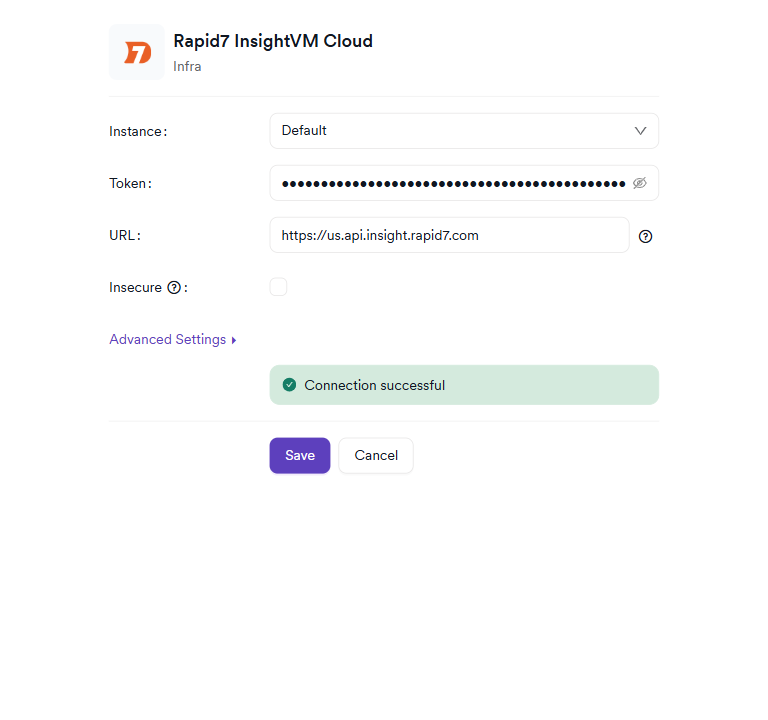
Fill in the following fields in the Rapid7 InsightVM Cloud settings drawer:
| Field | Type | Required | Description |
|---|---|---|---|
| Instance | Dropdown | No | Select Default for a shared integration, or choose a named instance for multi-instance configurations. |
| Token | Password input | Yes | Your Rapid7 Insight Platform API key. Displayed as masked dots after entry. |
| URL | Text input | Yes | The regional base URL of your Rapid7 Insight Platform (without trailing path). Example: https://us.api.insight.rapid7.com |
| Insecure | Checkbox | No | Disables SSL/TLS certificate verification. Enable only if your environment uses self-signed certificates. Not recommended for production. |
Advanced Settings (optional, click to expand):
- Allow Team Leads to scan this instance — When enabled, team lead users can use this integration instance for their scans.
- Allow Team Leads to create new instances — When enabled, team lead users can configure their own personal API token instances.
Step 5: Test the Connection
After entering the Token and URL, click Test Connection.
- If the API key and URL are valid, a green "Connection successful" message will appear.
- If the connection fails, verify your API key and regional URL. See the Troubleshooting section below.
Step 6: Save Settings
After a successful connection test, click Save to activate the integration.
The Rapid7 InsightVM Cloud card on the Infra integrations page will display an active status, confirming the integration is running.
Summary
| Step | Action |
|---|---|
| 1 | Navigate to Integrations from the left sidebar |
| 2 | Click the Infra tab |
| 3 | Locate the Rapid7 InsightVM Cloud card and click Activate |
| 4 | Enter your API Key (Token) and regional API URL |
| 5 | (Optional) Enable Insecure if using self-signed certificates |
| 6 | Click Test Connection and verify the green "Connection successful" message |
| 7 | Click Save to activate the integration |
Create a Scan
Once the Rapid7 InsightVM Cloud integration is active, you can bind it to a project to fetch vulnerability data.
Navigate to Project Scanners
- Open the project you want to configure.
- Go to Settings → Scanners within the project.
- Click Add Scanner.
- Select Infra as the scanner type.
- Select Rapid7 InsightVM Cloud from the scanner list.
- Click Add to open the scan configuration drawer.
Scan Configuration Fields
| Field | Type | Required | Description |
|---|---|---|---|
| Profile Name | Text input | Yes | A unique name for this scan configuration. Used to identify the scan in Invicti ASPM. |
| Instance | Dropdown | No | Select the integration instance to use. Defaults to Default. |
| Bind To | Searchable dropdown | Yes | Select the InsightVM Cloud asset (site) to fetch vulnerability data from. Assets are retrieved from your InsightVM Cloud instance. |
| Metadata | Text input | Yes | A metadata identifier for the scan. Must follow the ScanMetaData format (alphanumeric, _, ., +, -). Used for filtering and grouping scan results. |
| Scan Tag | Text input | No | Optional tag to organize and group related scans. |
| Severity Plus | Toggle | No | When enabled, increments the severity level of all findings by one step. Cannot be used together with Severity Minus. |
| Severity Minus | Toggle | No | When enabled, decrements the severity level of all findings by one step. Cannot be used together with Severity Plus. |
The Bind to field lists the assets available in your InsightVM Cloud account. Select the asset whose vulnerability findings you want to import into this project.
Scheduler
Enable the Scheduler toggle to automatically fetch InsightVM Cloud results on a recurring schedule.
Webhook (Optional)
Add a webhook URL to receive scan completion notifications.
KDT Command
Once the scan is configured, you can also trigger it via the KDT CLI:
kdt scan -p <project_name> -t rapid7infracloud -b <branch_name>Vulnerability Data Imported
For each scan, Invicti ASPM imports the following information from InsightVM Cloud:
| Field | Description |
|---|---|
| Vulnerability title | Name of the vulnerability from the Rapid7 catalog |
| Severity | Mapped from InsightVM Cloud severity levels — see severity mapping table below |
| CVE | Associated CVE identifiers |
| CVSS v3 score | CVSS v3 base score |
| Description | Vulnerability description from the Rapid7 catalog |
| Remediation | Recommended fix and remediation steps |
| Proof | Scanner evidence of the vulnerability |
| IP address | IP address of the affected asset |
| Hostname | Hostname of the affected asset |
| OS Family | Operating system family (e.g., Windows, Linux) |
| OS Name | Full operating system name and version |
| Port / Protocol | Affected port and network protocol |
| Exploitability | Whether a known exploit exists for this vulnerability |
| First seen / Last seen | When the vulnerability was first and most recently detected |
Informational-severity findings are not imported.
Severity Mapping
| InsightVM Cloud Severity | Invicti ASPM Severity |
|---|---|
| Critical | Critical |
| Severe | High |
| Moderate | Medium |
| Low | Low |
| Informational | Info — excluded from import |
Troubleshooting
Connection Fails
| Problem | Possible Cause | Solution |
|---|---|---|
| "Connection failed" on Test Connection | Invalid or expired API key | Regenerate the API key from Rapid7 Insight Platform → API Keys and update it in Invicti ASPM. Verify the key was copied correctly without leading or trailing spaces. |
| "Connection failed" — URL error | Wrong regional URL or typo | Confirm the URL matches your InsightVM Cloud data residency region. The URL must start with https:// and must not include a trailing path or slash. |
| 401 Unauthorized | API key lacks the required permissions or was revoked | Ensure the API key belongs to a user with access to InsightVM Cloud data. Revoked keys must be regenerated. |
| Network error / cannot reach server | Firewall or proxy blocking outbound HTTPS | Verify that Invicti ASPM can reach the Rapid7 Insight Platform URL over HTTPS on port 443. Check firewall rules and proxy configuration. |
Scan Issues
| Problem | Possible Cause | Solution |
|---|---|---|
| No assets available in "Bind To" dropdown | API key lacks access to InsightVM Cloud assets, or no assets exist | Verify that the API key has access to InsightVM Cloud data in the Rapid7 Insight Platform. Confirm that at least one asset has been scanned in InsightVM Cloud. |
| Scan returns no findings | The selected asset has no open vulnerabilities, or the last scan is outdated | Check the asset's vulnerability data directly in InsightVM Cloud. Ensure a scan has completed recently on the Rapid7 side. Note that Invicti ASPM fetches the most recent vulnerability data from InsightVM Cloud — it does not trigger a new scan. |
| Severity modifiers not taking effect | Both Severity Plus and Severity Minus are mutually exclusive | Only one severity modifier can be active at a time. Disable the active one before enabling the other. |
| Metadata validation error | Metadata value contains invalid characters | Metadata must use only alphanumeric characters and the symbols _, ., +, -. It must also be unique — a metadata value already used by another scan in the same project is rejected. |
Best Practices
-
Use a dedicated API key: Create a Rapid7 Insight Platform API key specifically for the Invicti ASPM integration. This makes it easy to revoke or rotate access without affecting other integrations or users.
-
Rotate the API key regularly: Set a calendar reminder to regenerate the API key every 90 days. Update the key in Invicti ASPM settings before the old key expires to avoid scan interruptions.
-
Match the regional URL to your data residency: Using the wrong regional URL will result in connection failures even with a valid API key. Confirm your Rapid7 Insight Platform region from the platform's account settings.
-
Ensure InsightVM Cloud is actively scanning assets: Invicti ASPM only fetches existing vulnerability data — it cannot run new infrastructure scans. Keep your InsightVM Cloud scan schedule up to date to ensure findings are current.
-
Use HTTPS: Always use the HTTPS regional API URL. Never disable the SSL verification checkbox (Insecure) in production environments.
Limitations
-
Fetch-only integration: Invicti ASPM reads vulnerability data from InsightVM Cloud via its API. No new infrastructure scans are triggered on the Rapid7 side. The accuracy and freshness of findings depend entirely on when InsightVM Cloud last scanned the target asset.
-
Asset-based binding: Each scan must be bound to a specific InsightVM Cloud asset. Broad or organization-wide scans are not supported — each project scan fetches findings for exactly one asset.
-
Severity mapping constraints: InsightVM Cloud severity levels are mapped to Invicti ASPM severity levels as follows:
critical→ Critical,severe→ High,moderate→ Medium,low→ Low. Informational findings are excluded from import. -
API rate limits: The Rapid7 Insight Platform API enforces rate limits. For assets with large numbers of vulnerabilities, the initial data fetch may take longer as results are paginated in batches.
Updated 6 months ago