

Ollama
Ollama is an open-source tool for running large language models locally on your own infrastructure. The Invicti ASPM integration with Ollama enables AI-powered features — such as vulnerability remediation guidance and security analysis — by connecting to a self-hosted Ollama instance, keeping all data within your own environment.
Purpose in Invicti ASPM
Ollama is used in Invicti ASPM as an LLM Provider — supplying the language model that powers AI-assisted security features from a self-hosted deployment.
| Use Case | Description |
|---|---|
| AI remediation guidance | Generate fix recommendations for discovered vulnerabilities using locally hosted models |
| Security analysis | Use self-hosted language models to assist in triage and prioritization of security findings |
| Air-gapped / private deployments | Run AI features entirely within your own infrastructure without sending data to external providers |
Where It Is Used
| Page | Navigation Path | Purpose |
|---|---|---|
| Integrations — LLM Providers | Integrations › LLM Providers | Admin activation and model configuration |
Prerequisites
Before activating the integration, ensure your Ollama instance is running and reachable from Invicti ASPM:
| Field | Description | Required |
|---|---|---|
| URL | The URL of your running Ollama instance (e.g., http://localhost:11434) | Yes |
| Model | The Ollama model to use (selected after a successful test connection) | Yes |
Note: Ollama does not require an API key — authentication is based on network access to the Ollama endpoint. Ensure the Ollama instance is network-accessible from the Invicti ASPM host.
How to Set Up Ollama
- Install Ollama by following the instructions at ollama.com.
- Pull at least one model, for example:
ollama pull llama3 - Start the Ollama server:
ollama serve - By default, Ollama listens on
http://localhost:11434. If Invicti ASPM runs on a different host, configure Ollama to bind to an accessible address and ensure the port is reachable.
Activation Steps
Step 1: Navigate to Integrations
From the left sidebar, click Integrations.
Step 2: Open the LLM Providers Tab
On the Integrations page, click the LLM Providers tab.
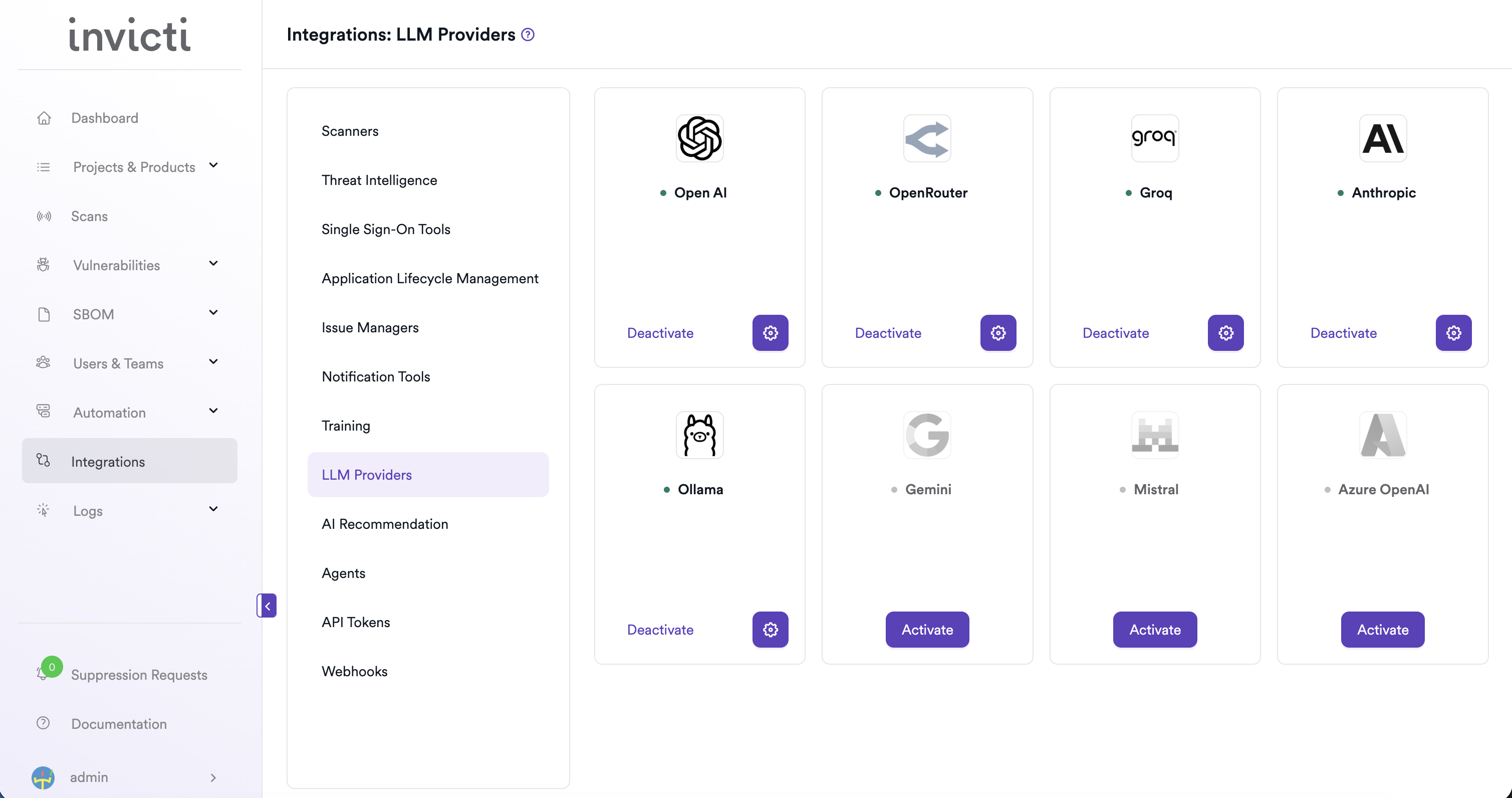
Step 3: Find and Activate Ollama
Locate the Ollama card.
- If it is not yet activated, click Activate to open the settings drawer.
- If it is already activated, click the gear icon to open the settings drawer and reconfigure.
Step 4: Fill In the Required Fields
In the settings drawer, enter the URL of your Ollama instance:
| Field | Description | Required |
|---|---|---|
| URL | The base URL of your Ollama server (e.g., http://your-host:11434) | Yes |
Step 5: Test the Connection
Click Test Connection. A green "Connection successful" message confirms that Invicti ASPM can reach your Ollama instance. The Model dropdown will appear automatically after a successful test, listing the models available on your Ollama server.
Step 6: Select a Model
From the Model dropdown, select the model you want to use for AI features in Invicti ASPM. Only models that are already pulled on your Ollama instance will appear.
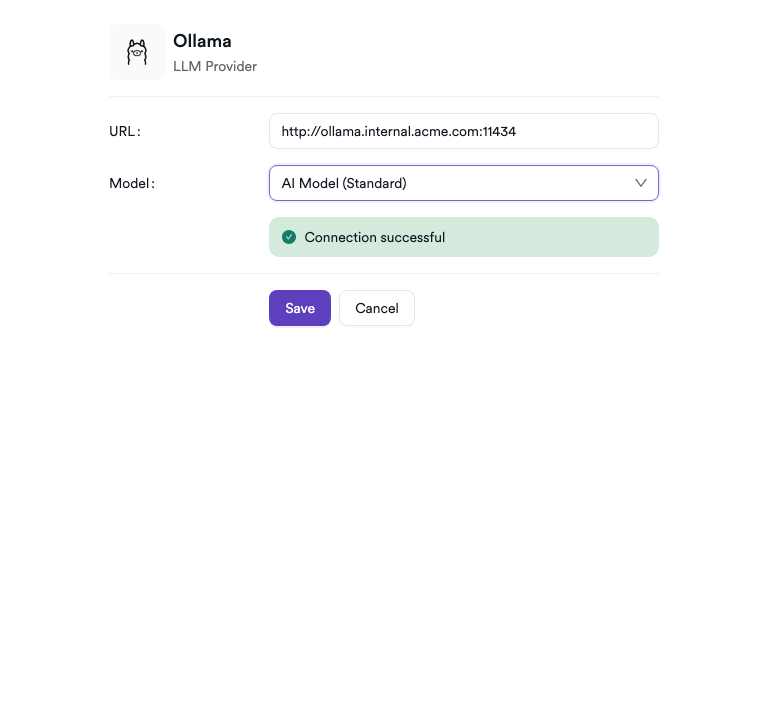
Step 7: Save
Click Save to complete the activation.
Summary
| Step | Action |
|---|---|
| 1 | Navigate to Integrations from the sidebar |
| 2 | Select the LLM Providers tab |
| 3 | Find Ollama and click Activate (or the gear icon) |
| 4 | Enter the URL of your Ollama instance |
| 5 | Click Test Connection — verify the success message |
| 6 | Select a Model from the dropdown |
| 7 | Click Save |
Troubleshooting
| Issue | Resolution |
|---|---|
| Connection failed | Verify that the Ollama server is running and that the URL is correct. Check network connectivity between Invicti ASPM and the Ollama host. |
| No models available | Ensure at least one model has been pulled on your Ollama instance (ollama list). Pull a model using ollama pull <model-name>. |
| URL not reachable | If Ollama is running on a different host, confirm it is bound to a non-localhost address and that firewalls allow traffic on port 11434 (or your configured port). |
| Invalid URL | Ensure the URL includes the scheme (http:// or https://) and the correct port. |
| SSL / certificate error | If Ollama is running behind HTTPS with a self-signed certificate, configure your environment to trust the certificate or use HTTP for internal connections. |
Updated 6 months ago